

Staff
For school admins.
On this page
- See all staff
- Add a staff member
- Give someone admin access
- Staff title vs. system role
- Administrative access and permissions
- Resend a staff invitation
- Revoke a pending invitation
- Assign staff to a class
- Set a staff member inactive (archive)
- Restore an inactive staff member
- Remove a staff member from the school
- Message a staff member from their profile
See all staff
Tap the Staff tab. Use Active, Inactive, or All to filter, and the search box to find someone by name or email.
If you work at more than one school, Staff shows the school you currently have selected. Switch schools from Home.
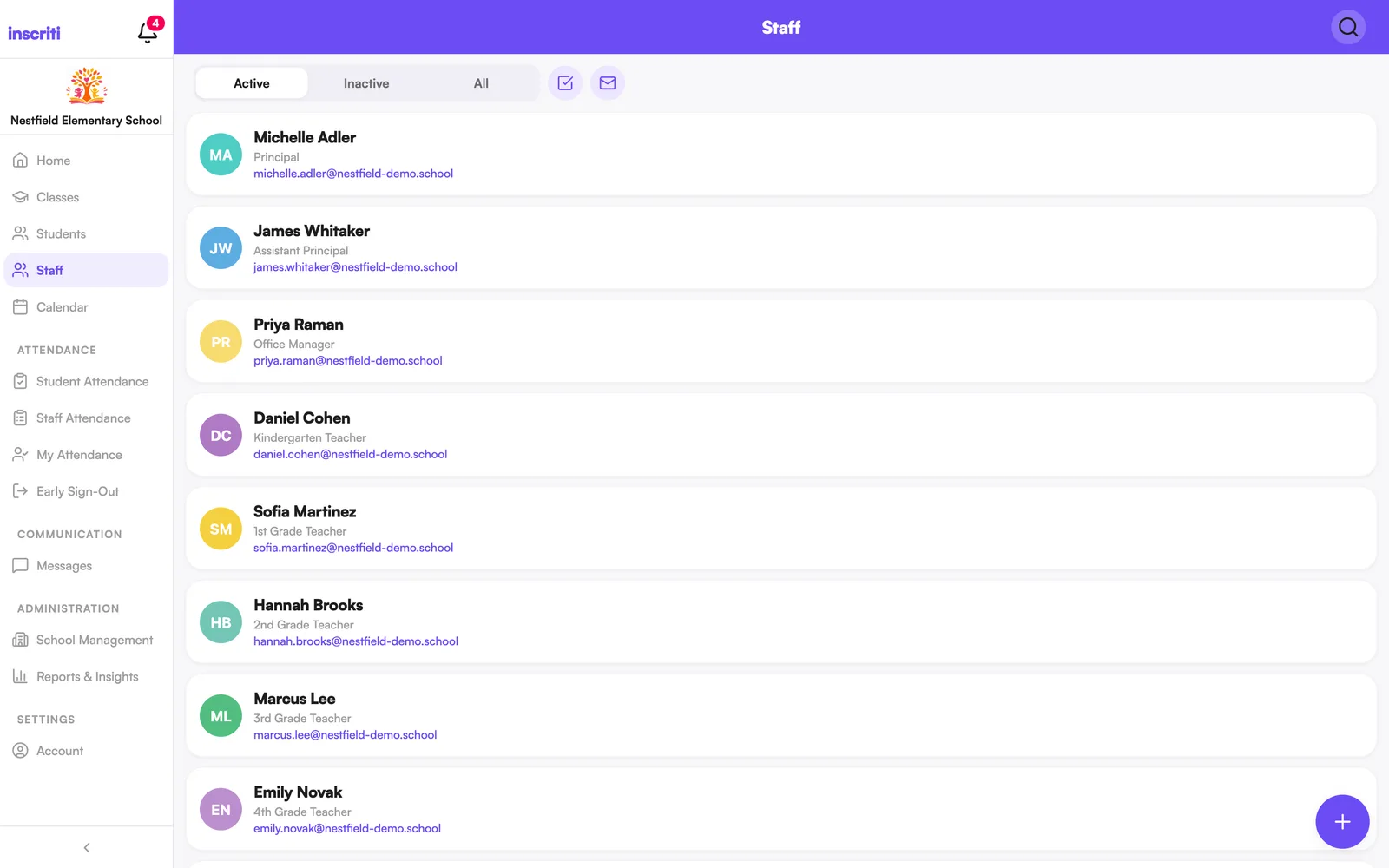
Add a staff member
- Tap the Staff tab.
- Tap the + button.
- Enter their First Name, Last Name, and Email Address.
- Tap Add Staff Member.
They get an email to set up their account. Everyone added this way starts as staff — there's no separate "teacher" choice. Assigning them to a class is what makes them a teacher of it. See Staff title vs. system role.
Give someone admin access
Only a full administrator can grant administrative access — there's no separate "admin" role to pick when adding someone.
- While adding the staff member, or later from their profile (tap Edit), turn on Give this person administrative access.
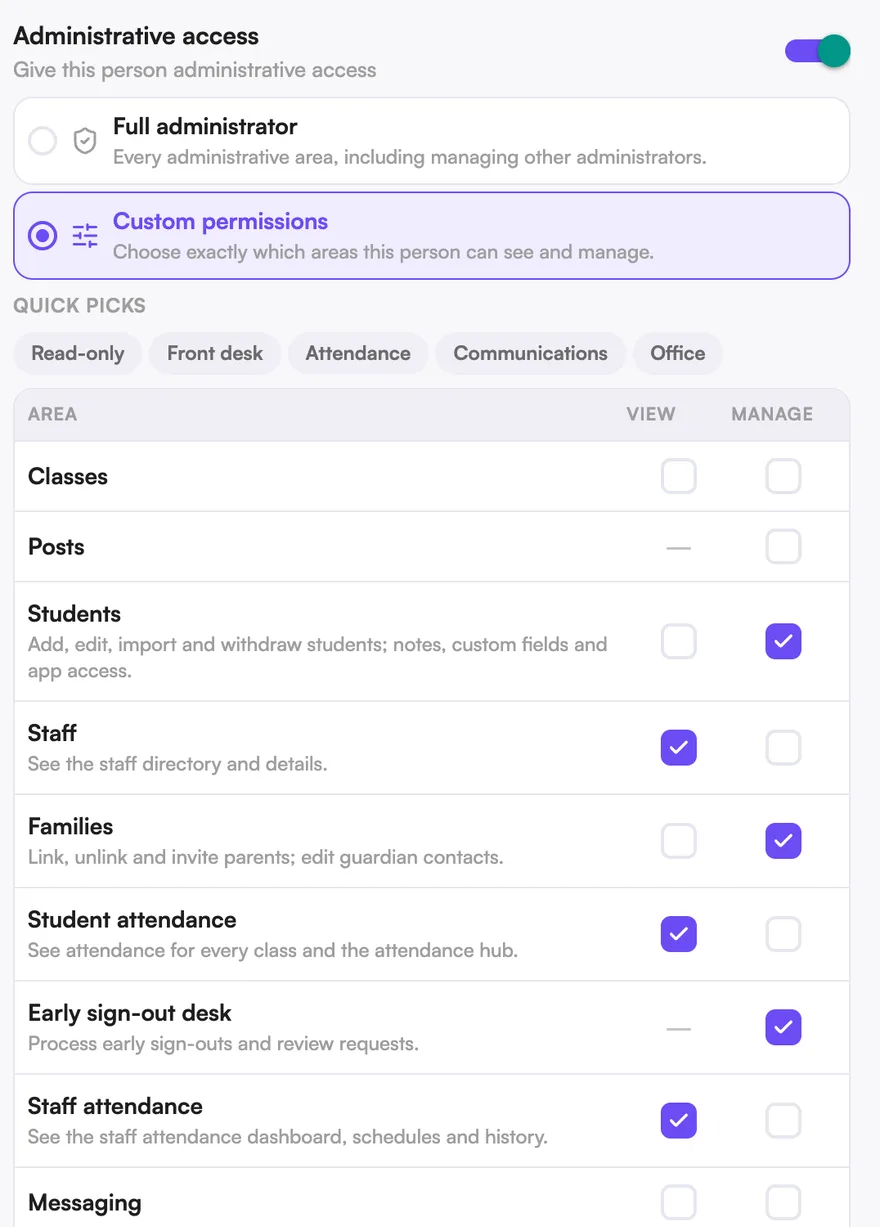
- Choose Full administrator (everything, including managing other admins) or Custom permissions (pick exactly what they can see and manage).
- Save.
A full administrator shows as Admin everywhere in the app. Someone with custom permissions still shows as Staff, with extra access underneath. See Administrative access and permissions.
Staff title vs. system role
Inscriti shows two different things about a staff member, and they don't affect each other:
- System role — Staff or Admin. This is what controls what they can actually do.
- Staff title — what they're called on their profile and their posts: Teacher, Teaching Assistant, Principal, Office Staff, or a custom title you type. It's display-only.
- Open the staff member's profile.
- Tap Edit.
- Under Staff title, pick a preset (Teacher, Teaching Assistant, Special Education Teacher, Substitute Teacher, Hebrew Teacher, Music Teacher, Office Staff, Program Coordinator, Youth Director, Administrator, Principal, Director) or choose Other / Custom and type one.
- Save.
Changing a staff title never grants or removes permissions — it only changes what shows on their profile and posts.
Administrative access and permissions
What a staff member can manage is controlled separately from their staff title. Only a full administrator can grant or change anyone's access — from the staff member's profile, Edit → Administrative access.
- Full administrator — every administrative area, including managing other administrators.
- Custom permissions — pick exactly which areas they can view and manage.
Custom permission areas, each with View and/or Manage:
- Classes — see every class and its roster, or create/edit/archive classes and assign teachers.
- Posts — post to any class or the whole school; edit or delete any post or comment.
- Students — see every student record, or add/edit/import/withdraw students.
- Staff — see the staff directory, or add/invite/edit/archive staff.
- Families — see parents and guardian contacts, or link/unlink and invite them.
- Student attendance — see attendance, or correct it and run class QR codes.
- Early sign-out desk — process early sign-outs and review requests.
- Staff attendance — see the dashboard and history, or make corrections and manage the kiosk.
- Messaging — read school conversations (oversight), or manage alerts, flagged messages, and freezes.
- Announcements — send announcements to a class or the whole school.
- Calendar & events — create and manage school events and calendars.
- Reports — run, save, and export reports.
- School settings — profile, branding, features, school years, attendance settings, and custom fields.
Manage always includes View. Quick picks — Read-only, Front desk, Attendance, Communications, Office — fill in a common starting set that you can still adjust by hand.
A staff title like "Principal" or "Office Staff" is just a label — it never grants permissions on its own. Access always comes from Administrative access.
Resend a staff invitation
- Open the Staff tab.
- Tap the Invitations icon (top right — it shows a count when invites are pending).
- Find the person and tap Resend.
Invitations move through Pending → Accepted, or can be Revoked or Expired.
Revoke a pending invitation
- Open the Staff tab.
- Tap the Invitations icon.
- Find the person and tap Revoke.
A revoked invitation can't be accepted. Add them again if you change your mind.
Assign staff to a class
From the staff list:
- Tap the Staff tab.
- Tap Select and choose one or more active staff.
- Tap the class icon for Assign to Class.
- Pick the class and tap Assign to Class to confirm.
From one person's profile:
- Open the staff member.
- Under Assigned Classes, tap Manage.
- Add or remove classes.
- Tap Save assignments.
Set a staff member inactive (archive)
Inactive staff keep their account and history but lose access to the school — no posting, messaging, attendance, or student profiles — until reactivated.
From the staff list:
- Tap Select and choose one or more active staff.
- Tap the archive icon.
- Confirm Archive.
From one person's profile:
- Open the staff member → Account tab.
- Tap Set Inactive.
Restore an inactive staff member
From the staff list:
- Tap the Staff tab and switch the filter to Inactive.
- Tap Select and choose one or more staff.
- Tap the restore icon and confirm Restore.
From one person's profile:
- Open the staff member → Account tab.
- Tap Reactivate.
Class assignments aren't restored automatically — add them back under Assigned Classes.
Remove a staff member from the school
Removing deletes their teacher/admin access for this school. Their account and any posts they authored are kept, but they must be inactive first.
- Set them inactive — see Set a staff member inactive.
- With the Inactive filter on, tap Select and choose them.
- Tap the remove icon and confirm Remove.
This can't be undone from the app. If they should come back, add them again.
Message a staff member from their profile
- Open their profile.
- Tap the message icon at the top.
Was this page helpful?
Still stuck?
Email us your school name, your role and what you were trying to do. A person answers, usually within one business day.
© 2026 Jordan Feldstein LLC · Inscriti Help Center · Staff · inscriti.com/help