

Early Sign-Out
Front-desk kiosk pickups, plus requests from parents.
On this page
About Early Sign-Out
Early Sign-Out is a kiosk-style feature for the front desk. When a parent or approved pickup person arrives to take a student home early, office staff use the kiosk on an iPad (or computer) to sign the student out with a digital signature — creating a fully audit-trailed record.
Parents can also send a heads-up from the app before they arrive — see Request an early pickup. The kiosk is still where the actual sign-out and signature happen.
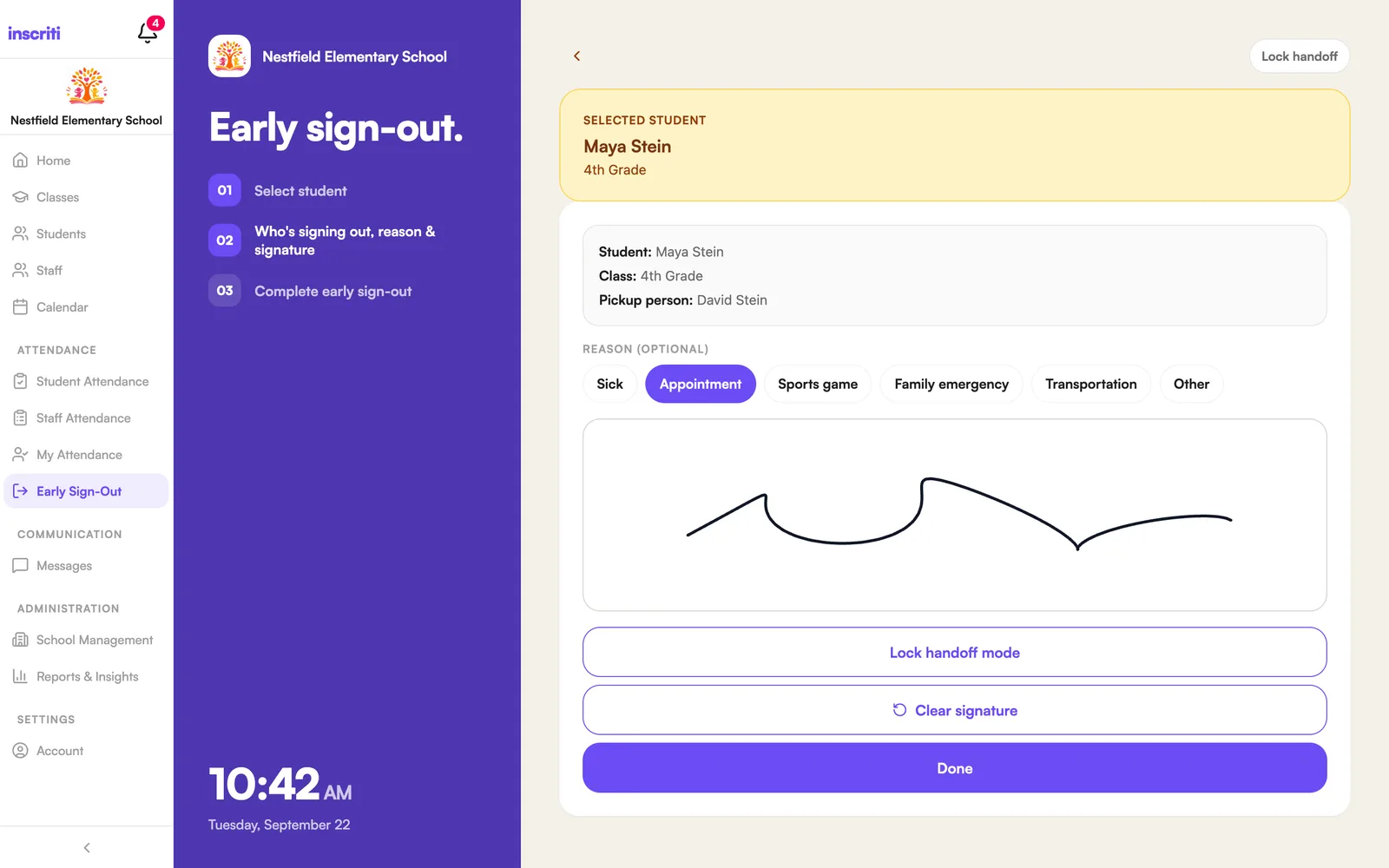
Sign out a student at the kiosk (office staff)
- Open Early Sign-Out and search for the student.
- Tap their card.
- If they're in more than one class, choose which one.
- Pick who's picking them up from the approved list — or tap Other pickup person if they're not listed.
- Choose a reason, if you'd like (Sick, Appointment, Sports game, Family emergency, Transportation, Other).
- Hand the iPad to the person picking up — they sign on the screen.
- Tap Done.
The signature, name, time, and reason are all saved on the student's record automatically. A student already signed out today shows a grayed-out card with the time.
If a parent already sent a request for this student, their note appears on the pickup step and their choice is pre-filled — you can still change it.
When the pickup person isn't on the approved list
- On the pickup step, tap Other pickup person.
- Type their full name.
- Check the confirmation box — "I have confirmed parental approval to release [student] to this person" — before continuing.
- Continue to the signature step as normal.
Always follow your school's verification policy (for example, checking photo ID) before releasing a student to anyone not on the approved list.
See today's completed sign-outs
Open the class's Attendance screen — a student who was signed out early that day shows a badge with the time and who picked them up, plus a View button for the signature.
For a school-wide list across every class, run the Early sign-outs report — see Run and filter a report.
See the full early sign-out history
- Open Reports & Insights.
- Open the Early sign-outs report.
- Set a date range, then tap Export CSV or Export PDF if you want a copy.
It runs immediately with its default range — tap the filters icon to change the dates or which columns show.
Request an early pickup (parents)
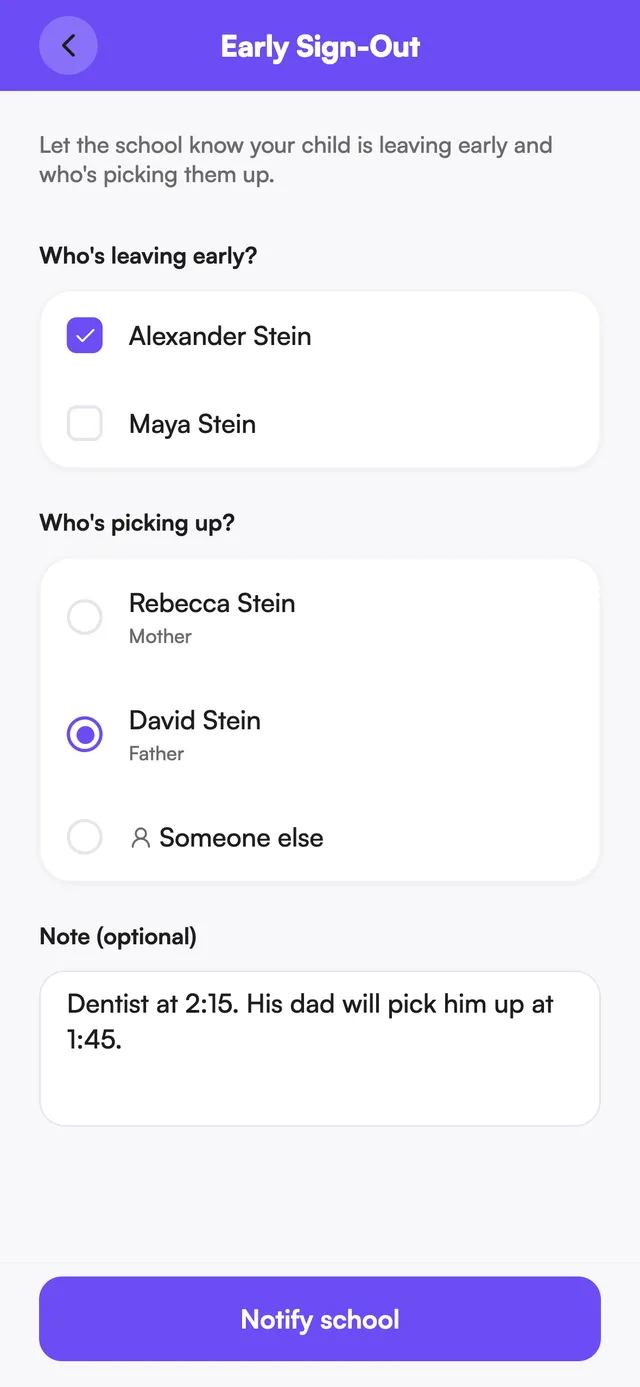
- Open My Children.
- Tap Early Sign-Out.
- Choose who's leaving early — you can select more than one child.
- Choose who's picking up: an approved guardian, or Someone else (type their name).
- Add an optional note.
- Tap Notify school.
The school sees your request and note when they process the pickup at the front desk, and your choice of pickup person is pre-filled for them.
Cancel an early sign-out request (parents)
- Open My Children.
- Under Today's early sign-outs, find the request.
- Tap Cancel request and confirm.
Only a pending request can be cancelled. Once a student has been signed out at the kiosk, the request shows as Signed out instead.
Sign-Out Notes (staff)
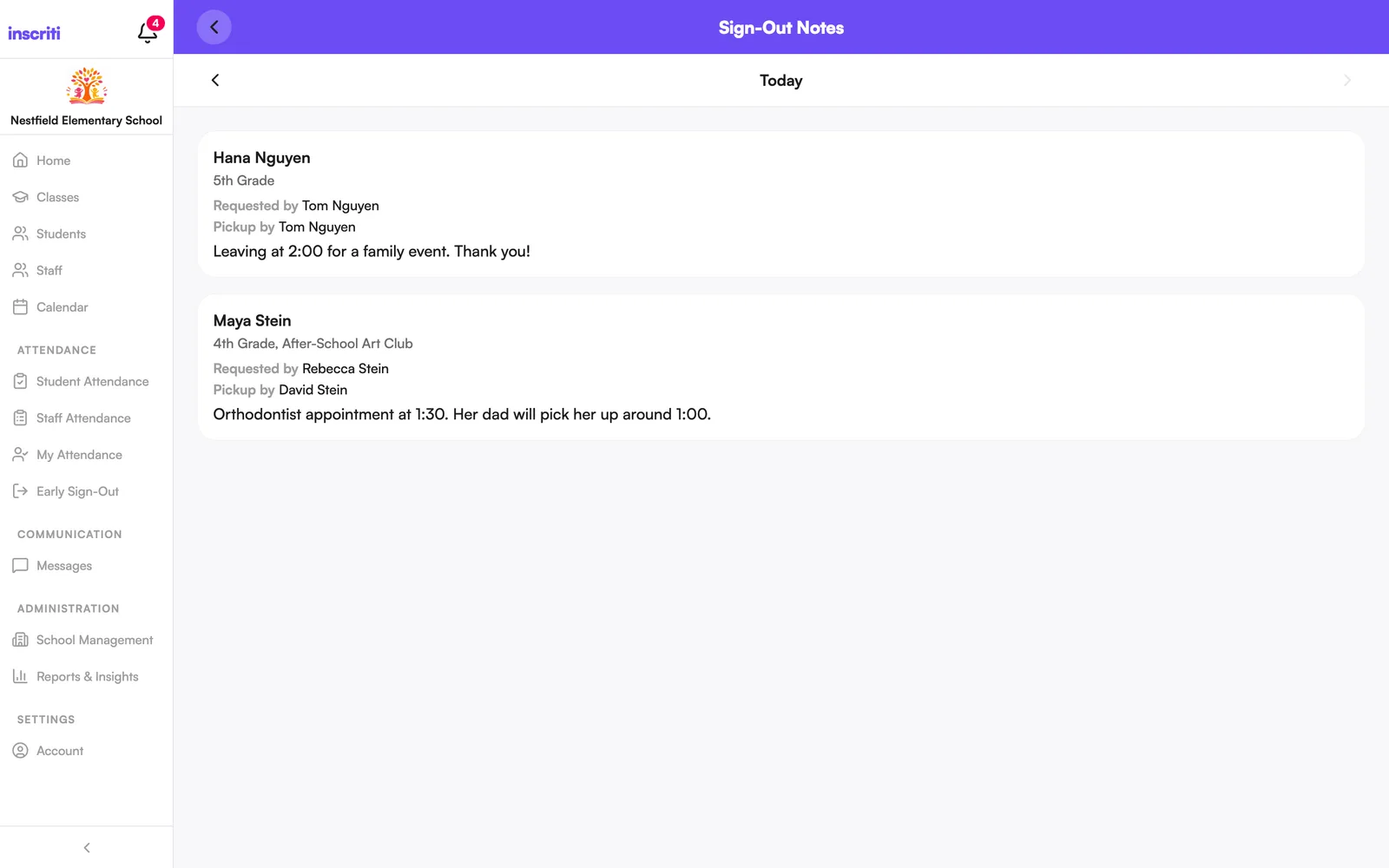
To see requests for a day without doing a sign-out, open Early Sign-Out and tap Sign-Out Notes.
- Today shows every pending request; step to a previous day to see that day's requests.
- Each entry shows who requested it, who's picking up, and any note.
Was this page helpful?
Still stuck?
Email us your school name, your role and what you were trying to do. A person answers, usually within one business day.
© 2026 Jordan Feldstein LLC · Inscriti Help Center · Early Sign-Out · inscriti.com/help