

Notifications
Stay in the loop without overwhelm.
On this page
See your notifications
On the Home screen, tap the bell icon near the top. It shows a small number badge when you have unread notifications.
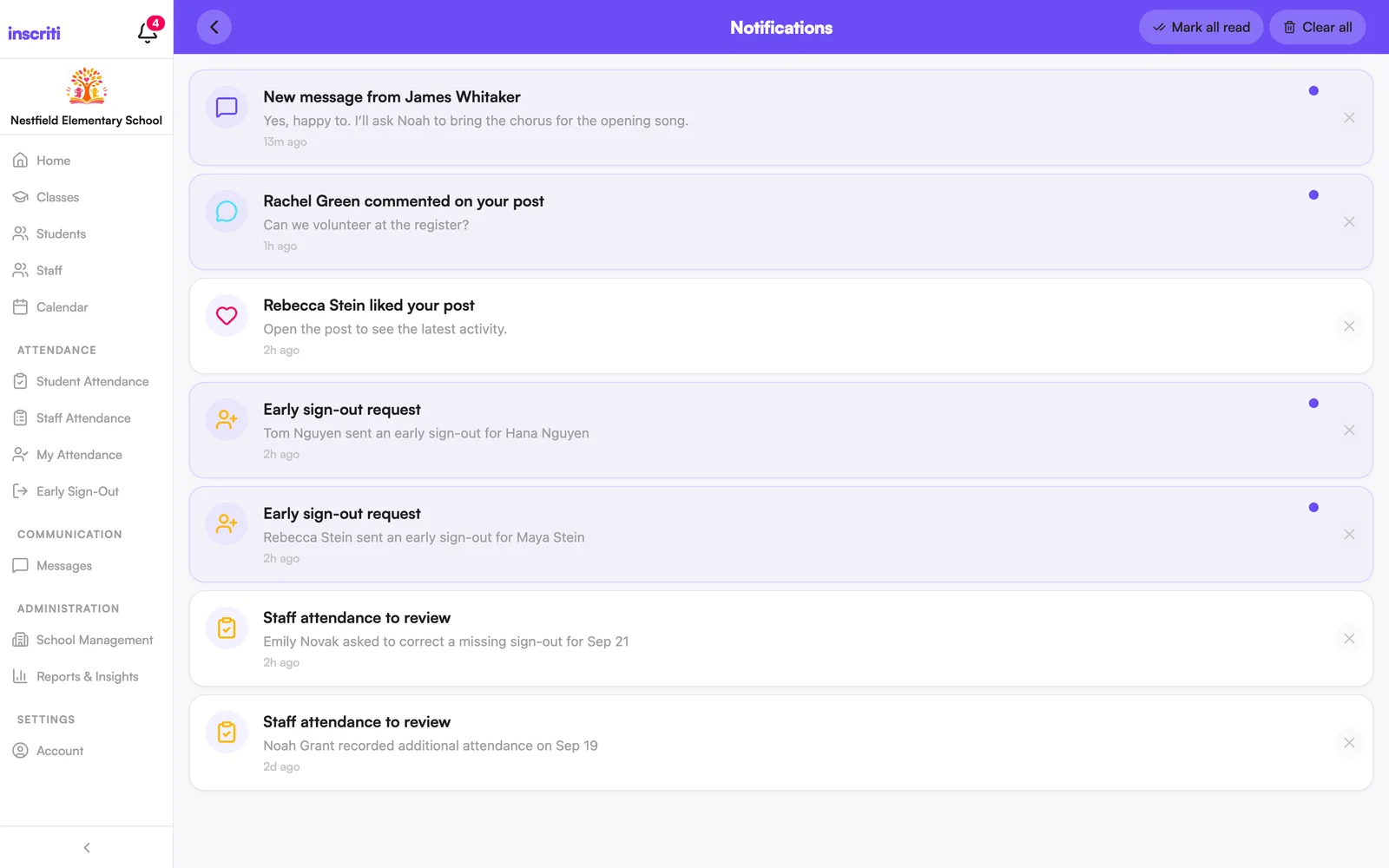
Open a notification
Tap it. The app takes you to the related post, message, or screen.
Mark all notifications as read
- Tap the bell icon.
- Tap Mark all read.
Clear all notifications
- Tap the bell icon.
- Tap Clear all.
- Confirm by tapping Clear All. This permanently deletes all your notifications.
Turn on push notifications
Changes on the Notification Settings screen save automatically — there's no Save button.
- Open the menu (☰) and tap Account.
- Tap Notification Settings.
- Turn on Push Notifications. Your phone may ask you to allow notifications — allow it.
If it still doesn't work, open your phone's own Settings app, find Inscriti, and turn Notifications on there too.
Push notifications aren't available on the web version of Inscriti — that toggle is disabled on a computer. In-app notifications still work on the web.
Turn off in-app notifications
- Open the menu (☰) and tap Account.
- Tap Notification Settings.
- Turn off Show In-App Notifications.
This controls the bell, the notifications list, and the unread badge count.
Turn off email notifications
- Open the menu (☰) and tap Account.
- Tap Notification Settings.
- Turn off Email Notifications.
Urgent alerts and announcements are still emailed even with this off — everything else stops.
Change how often you get email notifications
- Open the menu (☰) and tap Account.
- Tap Notification Settings.
- With Email Notifications turned on, find Email Delivery.
- Choose Instant or Daily summary.
Daily summary batches the day's posts, comments, and likes into one email each evening. Messages and urgent alerts are always sent right away, no matter which you choose.
Choose which activity notifies you
Below the delivery toggles, Notification Settings has an Activity Types section that controls what creates a notification at all — across in-app, push, and email:
- Posts — a master switch, with separate toggles underneath for School-Wide Posts, Class Posts, and Student Posts
- Messages
- Comments and Likes — only shown if you're able to create posts, since these notify you when someone interacts with your own post
- Parent & Guardian Links — account-linking and relationship updates
- Events — new events and event reminders
Turn any of these off to stop that type of notification everywhere.
Was this page helpful?
Still stuck?
Email us your school name, your role and what you were trying to do. A person answers, usually within one business day.
© 2026 Jordan Feldstein LLC · Inscriti Help Center · Notifications · inscriti.com/help