

Home Feed & Posts
View, create, and manage school posts.
On this page
- View the school feed
- Read a full post
- View photos in a post full screen
- View a PDF or document attached to a post
- Like a post
- Comment on a post
- Edit your own comment
- Delete your own comment
- Filter posts by class or child
- Create a post (teachers, admins)
- Format text in your post
- Attach a photo to a post
- Attach a video to a post
- Attach a PDF or document to a post
- Choose who sees your post
- Post to more than one class at once
- Schedule a post for later
- Save a draft to finish later
- Find your drafts and scheduled posts
- Edit a post you already published
- Delete a post
- Report a post or comment
- Download a photo from a post
View the school feed
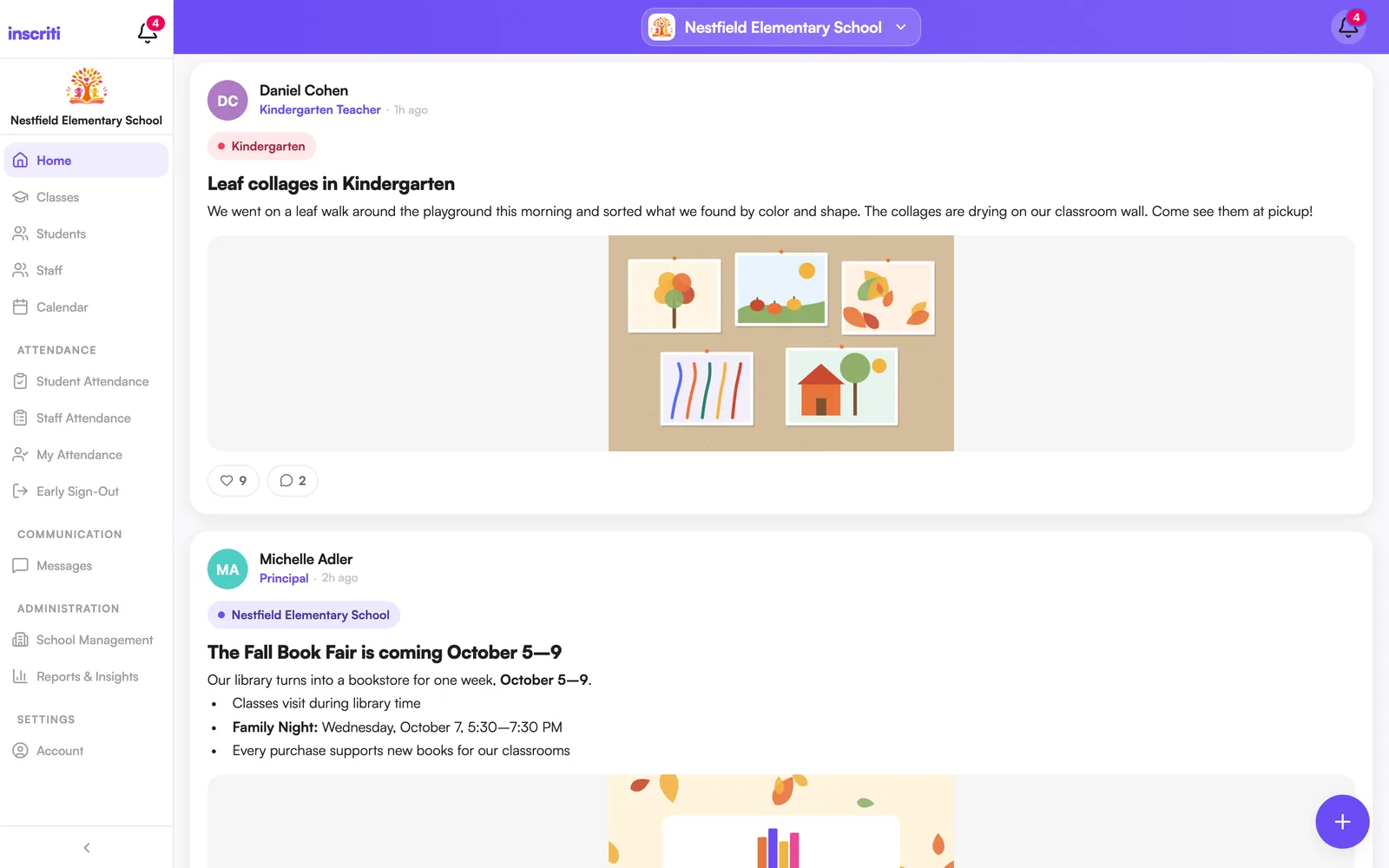
Tap the Home tab. You'll see posts in order, with the newest at the top. Pull down on the feed to refresh.
Read a full post
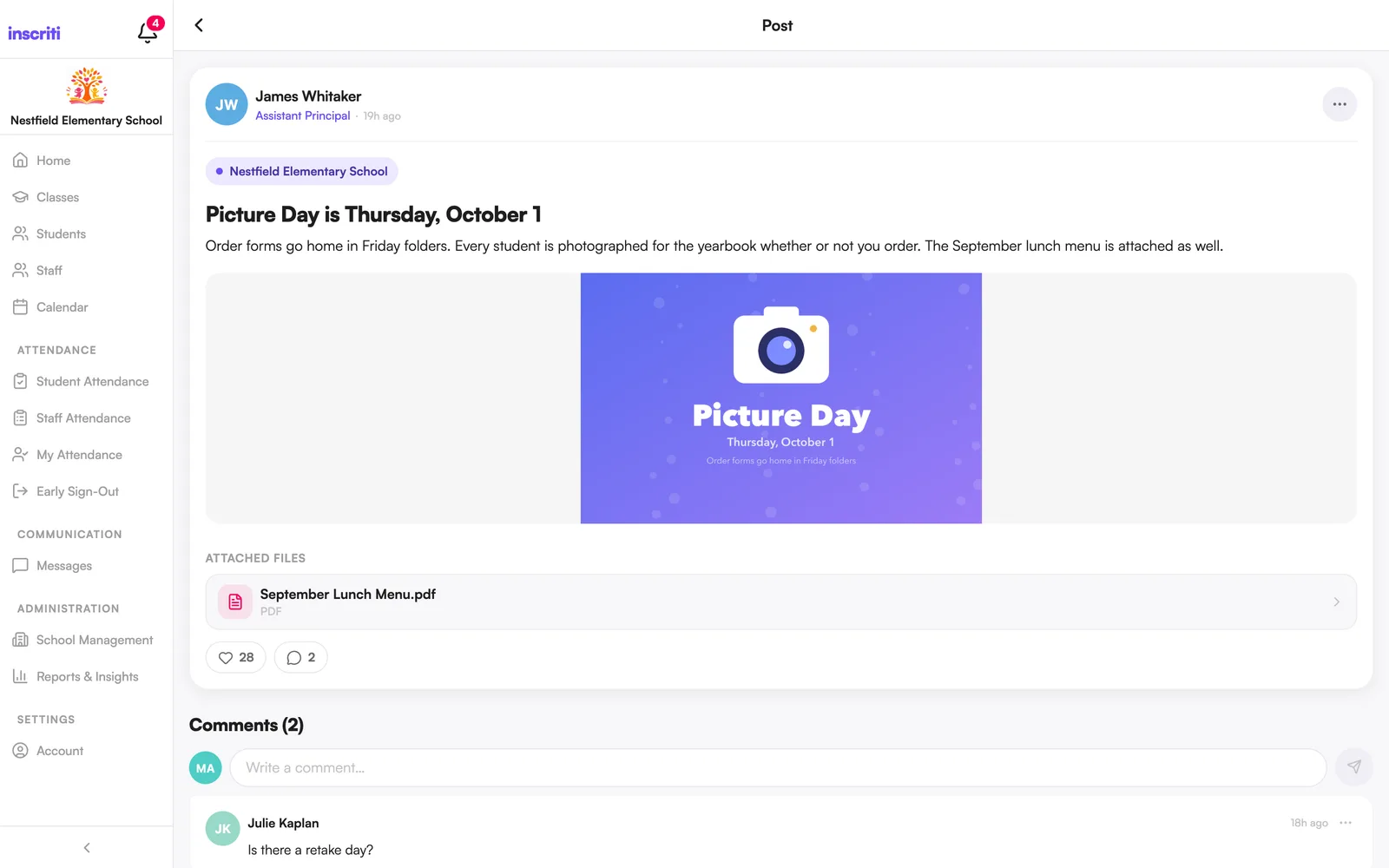
Tap anywhere on the post card. The full post opens with the complete message, all photos, all attachments, and all comments.
View photos in a post full screen
- Tap a photo in the post.
- The photo opens full screen. Swipe left and right to see more photos.
- Pinch with two fingers to zoom in.
- Tap the X to close.
View a PDF or document attached to a post
- Scroll to the bottom of the post.
- Tap the document name or icon.
- The file opens automatically — a PDF opens in a built-in viewer, and other file types hand off to your device to open.
On a computer, the file opens in a preview with Download and Open in new tab buttons.
Like a post
Tap the heart icon under the post. The heart fills in and the like count goes up. Tap again to unlike.
Comment on a post
- Open the post.
- Scroll to the Comments section.
- Tap the comment box and type your reply.
- Tap the send button.
Edit your own comment
- Open the post.
- Find your comment.
- Tap the More icon (⋯) next to it.
- Tap Edit, change the text, and tap Save.
Staff with the Posts permission, and whoever wrote the post, can also edit any comment on it.
Delete your own comment
- Open the post.
- Find your comment.
- Tap the More icon (⋯) next to it.
- Tap Delete and confirm.
Staff with the Posts permission, and whoever wrote the post, can also delete any comment on it.
Filter posts by class or child
If you have access to more than one class or more than one child, filter chips appear at the top of the Home feed:
- Parents with more than one child see an All pill plus a small picture for each child — tap a child to see only their updates.
- Staff with more than one class see a Filter by class row with a chip for each class.
Tap Clear filters to see everything again.
Create a post (teachers, admins)
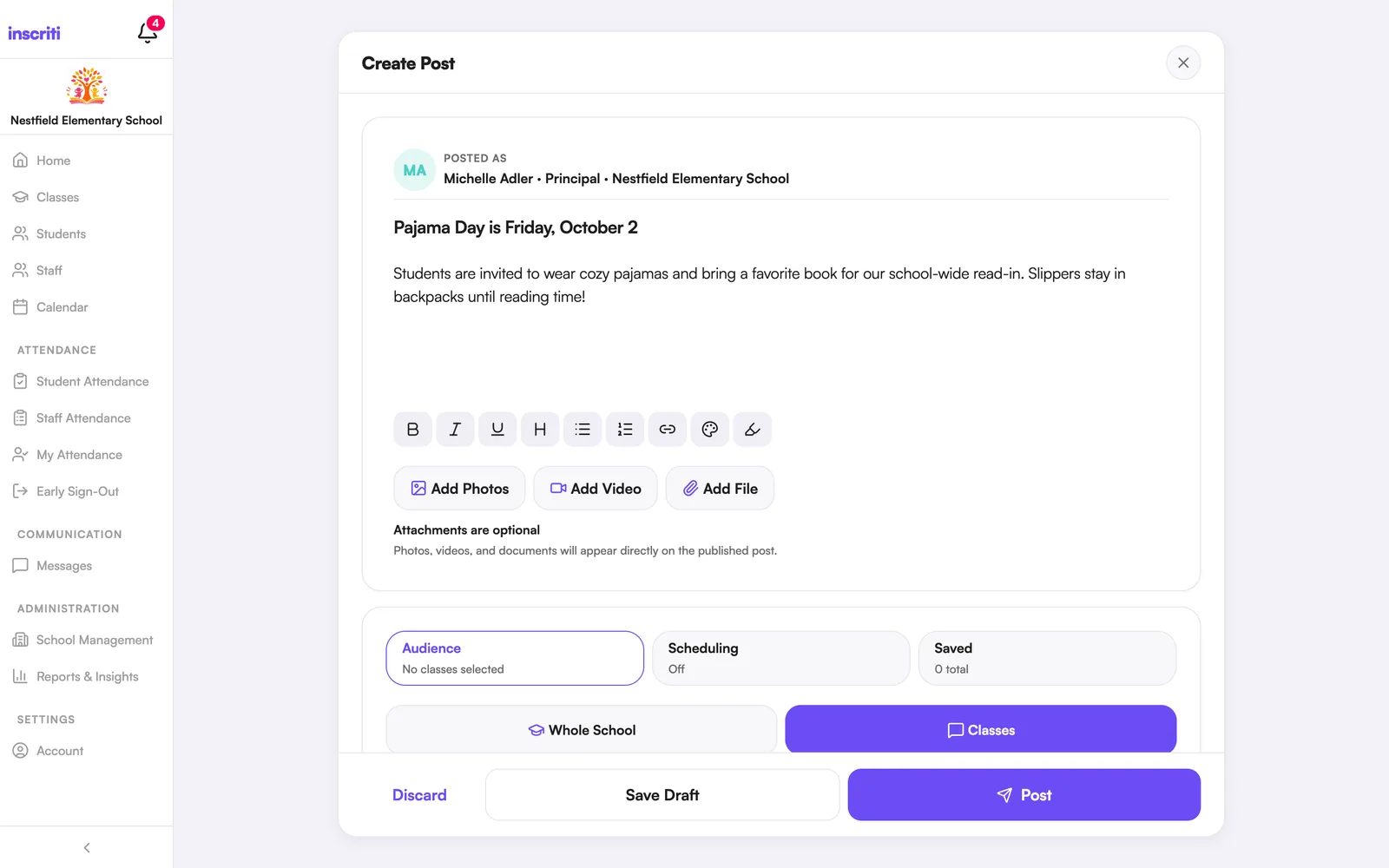
- Tap the Home tab, then the + button.
- Add a title (optional).
- Type your message.
- (Optional) Attach Photos, Videos, or Files.
- Choose an audience — Whole School or Classes.
- Tap Post.
Format text in your post
While writing a post, select some text, then tap a button in the formatting toolbar:
- Bold, Italic, Underline
- Heading, Bulleted list, Numbered list
- Link, Text colour, Highlight
Formatting shows in the feed exactly the way it looks while you're writing.
Attach a photo to a post
- While writing the post, tap Add Photos (the image icon).
- Choose photos from your device.
- They appear as thumbnails in the post. Hold and drag a thumbnail to reorder it.
- Tap X on any thumbnail to remove it before posting.
A post can have up to 10 attachments in total — photos, videos, and files combined.
Attach a video to a post
- While writing the post, tap Add Video (the video icon).
- Choose a video from your device.
- It uploads when you tap Post — a progress bar shows while it uploads.
Attach a PDF or document to a post
- While writing the post, tap Add File (the paperclip icon).
- Choose a PDF or Word document from your device.
- The file shows in the post.
Choose who sees your post
Tap the audience row near the top of the composer and pick one:
- Whole School — everyone at the school can see it. Only staff with the Posts permission can choose this.
- Classes — choose one or more classes. Only those students (and their parents) see it.
Post to more than one class at once
- Choose Classes as the audience.
- Tap each class you want to include — they'll show as selected chips.
- To remove a class, tap it again in the class list.
- Finish writing your post and tap Post.
Schedule a post for later
The post publishes automatically at that time. You can find it in the Saved panel until then.
- Write your post — a message is required to schedule.
- Open the Scheduling tab.
- Turn on Schedule this post.
- Pick a publish date and time (at least a minute in the future).
- Tap Schedule Post.
Save a draft to finish later
- Write your post.
- Tap the bookmark icon (or the Saved tab on a computer).
- Tap Save Draft.
- Come back to it later from the Saved panel.
Find your drafts and scheduled posts
- Open the post composer.
- Tap the bookmark icon (or the Saved tab).
- Switch between Drafts and Scheduled.
- On an item, tap Edit, Post Now, or Remove.
Edit a post you already published
- Open the post.
- Tap the More icon (⋯) at the top.
- Tap Edit. This opens the composer with your post already filled in.
- Change the text, or add and remove attachments.
- Tap Save Changes.
You (if you posted it) or staff with the Posts permission can edit a post.
Delete a post
Once deleted, it's gone for everyone.
- Open the post.
- Tap the More icon (⋯) at the top.
- Tap Delete and confirm.
You (if you posted it) or staff with the Posts permission can delete a post.
Report a post or comment
A school admin will review it.
- Open the post (or find the comment).
- Tap the More icon (⋯).
- Tap Report.
- Choose a reason: privacy or student safety, harassment or bullying, inappropriate content, spam, or another concern.
- (Optional) Add details for the reviewer.
- Tap Submit Report.
Download a photo from a post
- Open the post and tap the photo to open it full screen.
- On a computer, tap the download icon.
- On a phone, tap the share icon and save the photo from the share sheet.
Was this page helpful?
Still stuck?
Email us your school name, your role and what you were trying to do. A person answers, usually within one business day.
© 2026 Jordan Feldstein LLC · Inscriti Help Center · Home Feed & Posts · inscriti.com/help