

Set the school up once. Run it from one place.
School Management is where admins shape Inscriti around the school: its name and colors, its years and classes, its staff, and which features are switched on.
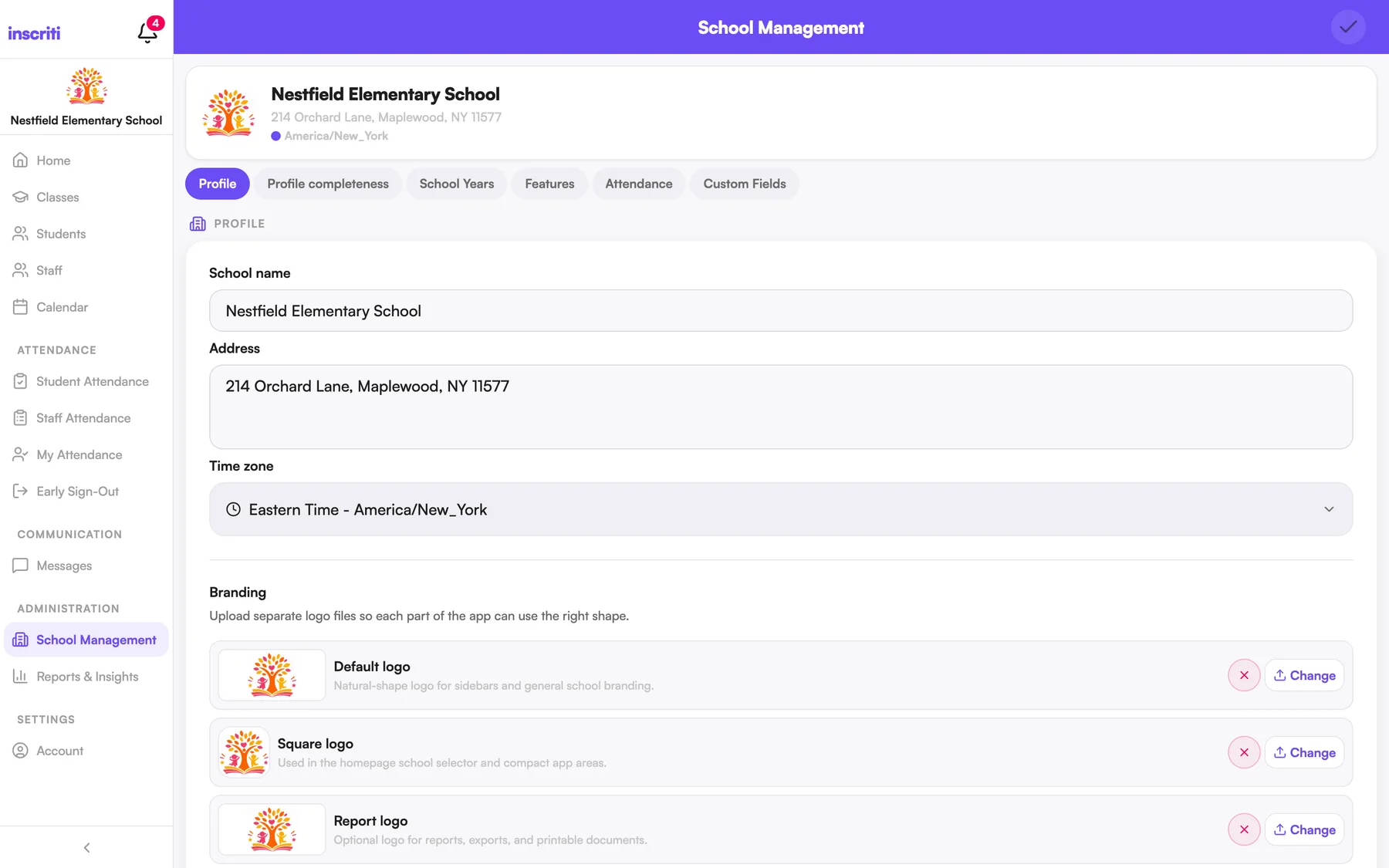
Your school's name, colors and logo on everything.
Set the school's name, address and timezone, choose a primary color, and upload your logos. The color carries through buttons, headers and badges, and your report logo prints on PDFs. The Completeness tab lists student, staff and guardian records with missing information, so you can fix them.
- No logo yet? Set a monogram of up to three letters
- All times in the app follow the school's timezone
Invite staff by email. Grant exactly the access they need.
Everyone joins as Staff. Give each person a title, like Teacher, Principal or Office Staff, and separately grant the permissions they need, up to Full administrator. Resend or revoke pending invitations, and set someone inactive when they leave. They can be restored later.
- A title is a label. It never grants access by itself
- Permissions cover areas like Students, Posts, Reports and School Management
- Staff see the classes they are assigned to
Roll into next year without starting over.
Create a school year with start and end dates and make it the active one. At the end of the year, promote students into the next year by class instead of enrolling each one by hand, and start the new year with a clean roster.
- New students enroll in the active year by default
- Last year's classes and history stay on record
Turn on what your school uses. Track what it needs.
Calendar, Early Sign-Out, Student App Access, School Messaging and Staff Attendance can each be switched on or off. Add custom student fields for the things only your school tracks, as text, number, date or yes/no, required or optional.
- Reorder, edit or remove custom fields at any time
- Custom fields can appear on printed class lists
One account, more than one school.
A person can belong to several schools with a different role in each: a parent at one and a teacher at another. They switch from the school name at the top of the screen, and the whole app, from feed to classes to messages, switches with them.
- No signing out and back in
- Each school's data stays with that school
The details people ask about.
- Completeness
- Find records with missing information.
- Titles and permissions
- A title for display, permissions for access.
- School years
- Create, set active, promote.
- Feature switches
- Five optional features, on or off per school.
- Launch guide
- A ten-step playbook with a suggested timeline.
- Printable handouts
- Quick-start pages for parents, teachers and the office.
See it with your own school in mind.
A short walkthrough with your team, mapped to how your school runs its day.