

Reports & Insights
Browse, run, save, and export reports.
On this page
Open Reports & Insights
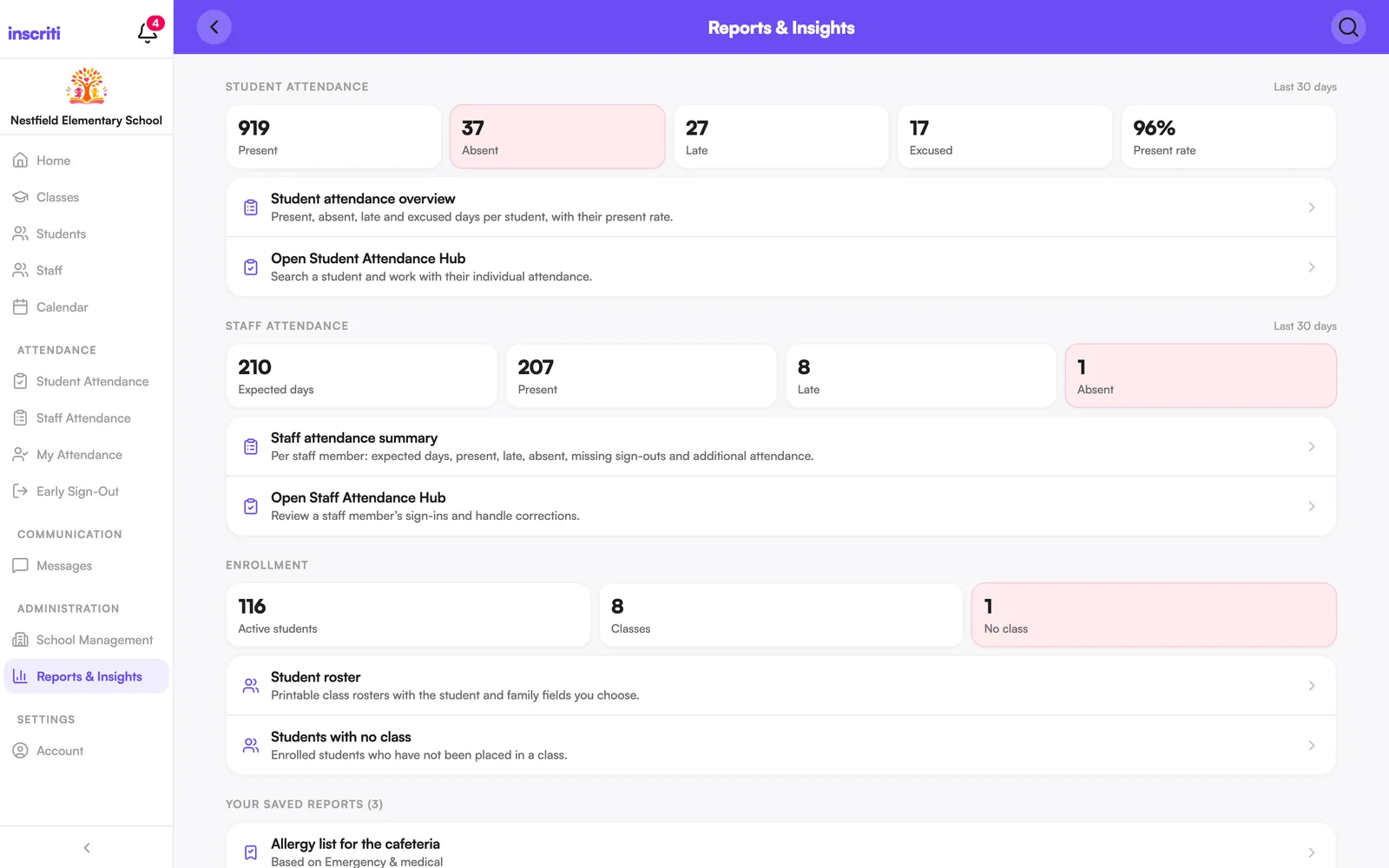
Open Reports & Insights from the menu (under Administration). It opens on an overview of the last 30 days — student attendance, staff attendance (if your school uses it), and enrollment — each with a shortcut into the report that explains it, or the hub for working with an individual record.
Below that: your saved reports, then every report grouped by category — Attendance, Staff attendance, Enrollment & classes, People & families, Health & safety.
Use the search box at the top to find a report by name.
Requires the Reports permission.
Run and filter a report
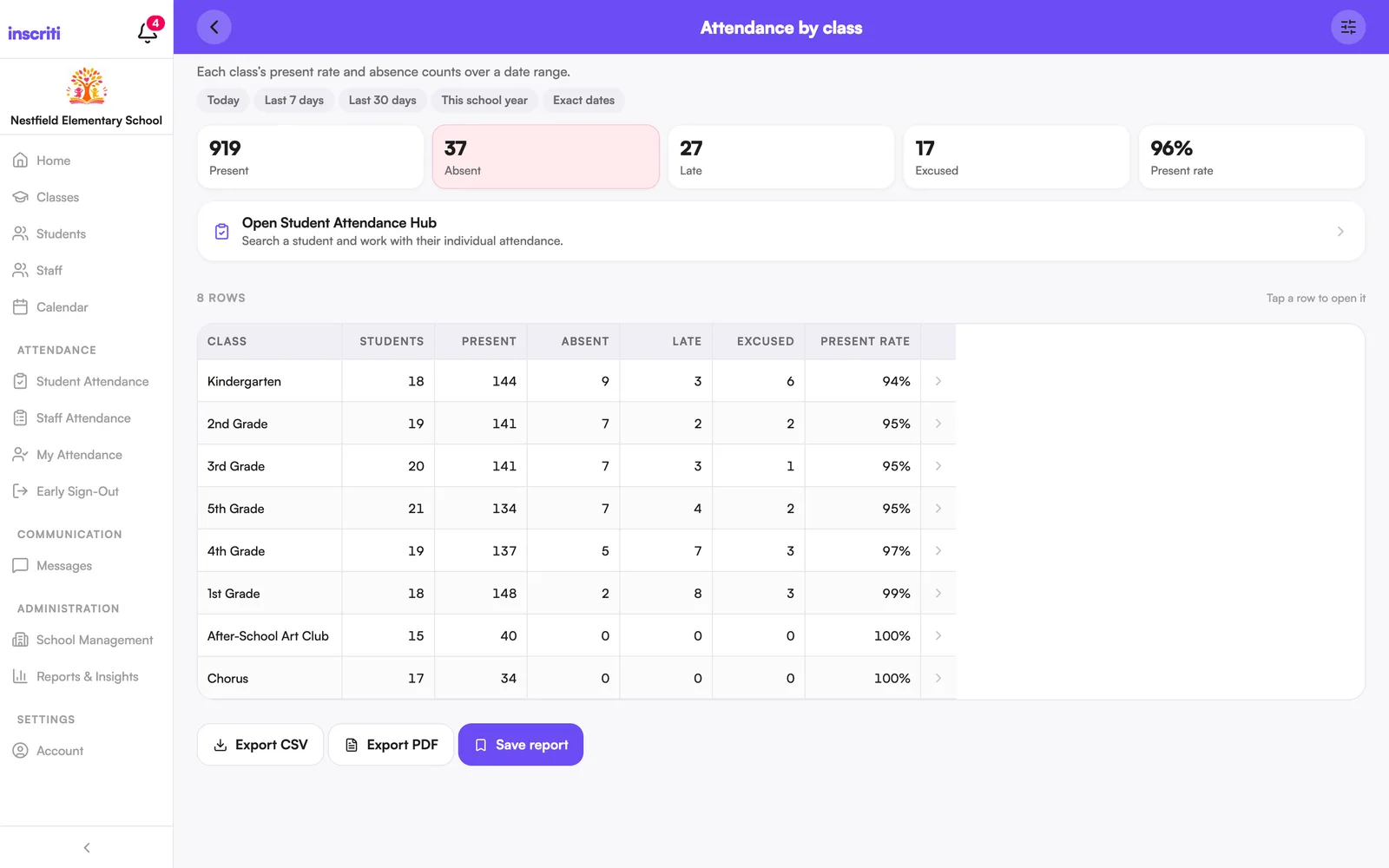
- From Reports & Insights, tap any report — for example Attendance by class or Early sign-outs.
- It runs immediately using its defaults — there's no separate "Run" step.
- If it has a date range, tap a preset right on the page: Today, Last 7 days, Last 30 days, This school year, or Exact dates.
- Tap the filters icon at the top to open Filters & columns for anything else — class, status, staff member, and which columns show.
The row count and any active filter are shown above the table. Tap a row to open the student, class, or staff member behind it.
Export a report as CSV
CSV files open in Excel or Google Sheets.
- Run the report.
- Tap Export CSV at the bottom.
- Save or share the file.
Export a report as PDF
- Run the report.
- Tap Export PDF at the bottom.
- Save, print, or share it.
The PDF includes your school's name and logo.
Print a student roster
- Open Reports & Insights and open Student roster (under People & families).
- Tap the filters icon → Filters & columns.
- Choose a class, and toggle which columns to include — name, date of birth, parent contacts, or custom fields like allergies or a bus number.
- Export as CSV or PDF.
Choose which columns appear in a report
- Run any report.
- Tap the filters icon at the top → Filters & columns.
- Under Columns, tap each field to turn it on or off.
This is the same set of columns in the on-screen table and in your CSV or PDF export.
Save a report
- Run and adjust a report the way you want it — date range, filters, columns.
- Tap Save report at the bottom (or Update saved report if you opened one you already saved).
- Name it and confirm.
Saved reports appear at the top of Reports & Insights and reopen with the same filters and columns every time.
Was this page helpful?
Still stuck?
Email us your school name, your role and what you were trying to do. A person answers, usually within one business day.
© 2026 Jordan Feldstein LLC · Inscriti Help Center · Reports & Insights · inscriti.com/help