

Your Account
Manage your profile, password, and preferences.
On this page
- Change your profile picture
- Remove your profile picture
- Change your name
- Add or change your phone number
- Change your password
- Set a password if you only signed in with Google or Apple
- Reset your password if you forgot it
- Connect your Google or Apple account
- Unlink Google or Apple
- Change the app's language
- View the Terms, Privacy Policy, and EULA
- Request account deletion
- Switch between schools
Change your profile picture
- Open the menu (☰) and tap Account.
- Tap your picture (or placeholder) at the top of the screen.
- Tap Take Photo or Choose from Library (on the web, Choose Photo).
- Adjust or crop the photo, then confirm.
Remove your profile picture
The app will use your initials in a colored circle instead.
- Open the menu (☰) and tap Account.
- Tap your picture at the top of the screen.
- Tap Remove Photo and confirm.
This option only appears once you have a photo uploaded.
Change your name
- Open the menu (☰) and tap Account.
- Tap Personal Information.
- Tap Name.
- Edit your first name and last name.
- Tap Save.
Add or change your phone number
- Open the menu (☰) and tap Account.
- Tap Personal Information.
- Tap Phone.
- Type your phone number, or clear the field to remove it.
- Tap Save.
Change your password
- Open the menu (☰) and tap Account.
- Tap Account & Security.
- Next to Email & Password, tap Change password.
- Type your current password.
- Type and confirm your new password. It needs to meet the requirements shown on screen.
- Tap Save.
Set a password if you only signed in with Google or Apple
Once you set a password, you can sign in with either your email and password or your social account.
- Open the menu (☰) and tap Account.
- Tap Account & Security.
- Next to Email & Password, tap Set password.
- Choose a new password and type it twice.
- Tap Set Password.
Reset your password if you forgot it
- On the sign-in screen, tap Forgot password?
- Type your email and tap Send Reset Link.
- Check your email for a 6-digit code.
- Enter the code and tap Verify code.
- Choose a new password and type it twice.
- Tap Update Password.
If the code doesn't arrive within a minute or two, check your spam folder or tap Resend code (you may need to wait up to 60 seconds).
Connect your Google or Apple account
There's no separate "link" button — Google and Apple connect automatically the moment you sign in with them using the same email as your Inscriti account.
- On the sign-in screen, tap Continue with Google or Continue with Apple.
- Sign in with the same email your Inscriti account uses.
- Open Account → Account & Security to confirm it now shows as Linked.
Unlink Google or Apple
You need at least one other way to sign in first (email and password, or the other social account) — otherwise you'll be locked out and the app won't let you unlink.
- Open the menu (☰) and tap Account.
- Tap Account & Security.
- Next to Google or Apple, tap the unlink icon.
- Confirm.
Change the app's language
- Open the menu (☰) and tap Account.
- Tap Language.
- Tap the language you want (English or Hebrew / עברית).
The app restarts to apply your choice.
View the Terms, Privacy Policy, and EULA
- Open the menu (☰) and tap Account.
- Tap Legal.
- Tap the document you want: About Inscriti, Privacy Policy, Terms of Service, or EULA.
Request account deletion
Deleting your account isn't instant — it's a request that Inscriti's privacy team reviews.
- Open the menu (☰) and tap Account.
- Tap Account & Data.
- Read what happens, then tap Request account deletion.
- Confirm. You'll be signed out shortly after.
Your account profile and sign-in access are removed or de-identified, typically within 30 days, and you'll get a confirmation email when it's done. Some student, attendance, message, media, or audit records may need to stay with the school for safety, legal, or record-keeping reasons even after your account is deleted.
Prefer not to use the app? Email privacy@inscriti.com from your account's email address to request deletion instead.
Switch between schools
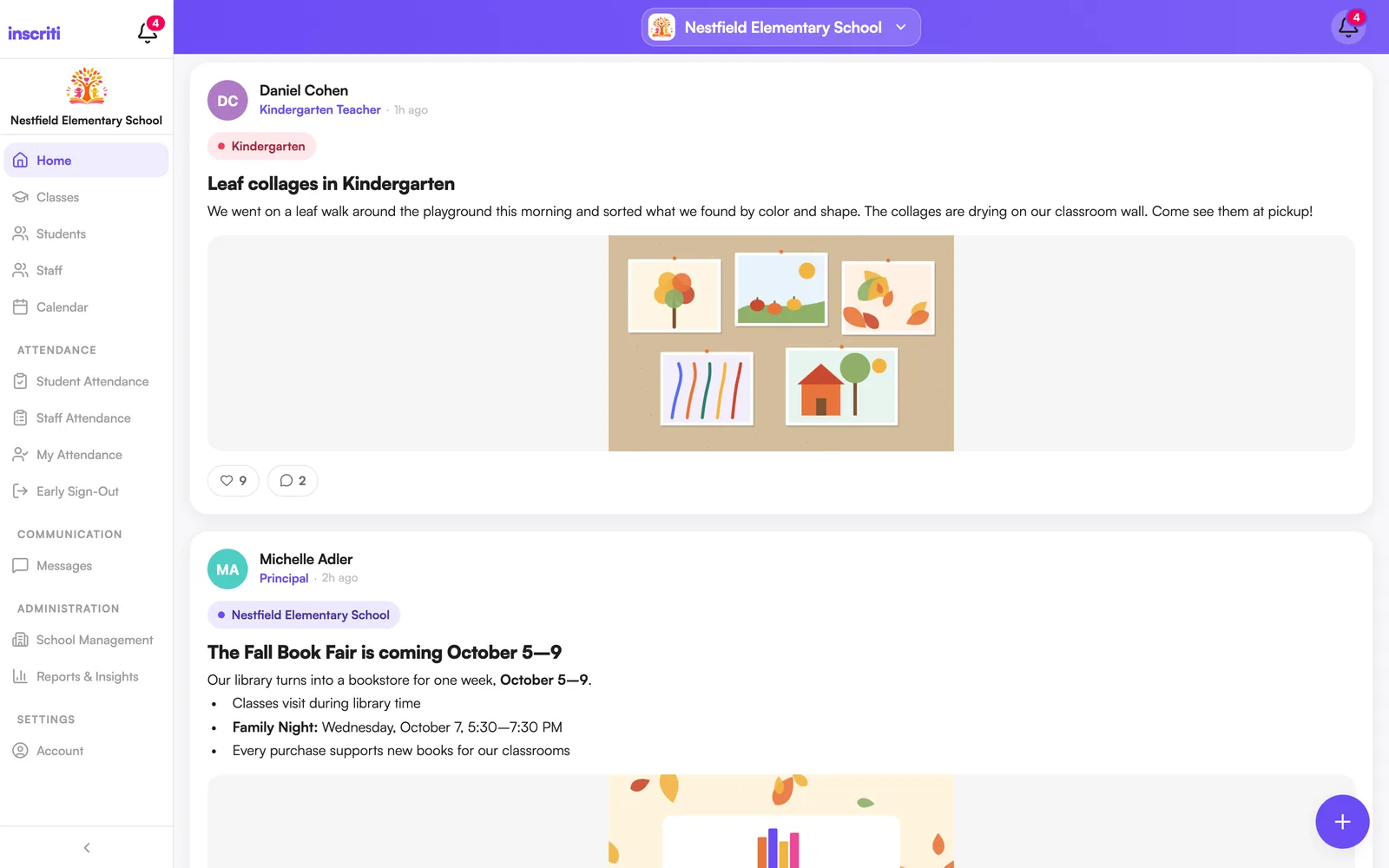
One Inscriti account can belong to more than one school — for example, a child at one school and a teaching job at another, or children at two different schools. You can switch between them at any time without signing out.
- Open the Home tab.
- Tap the school name and logo at the top of the screen.
- Pick the school you want to view.
The whole app re-loads for that school — the feed, classes, messages, calendar, and even your role, colors, and logo all switch to match it. Your other schools stay just a tap away. Inscriti remembers the school you were last viewing, so you'll land back there next time you open the app.
The school switcher always appears at the top of Home — even if you only belong to one school today, it's ready the moment you're added to another. If a school you belong to has been deactivated, it still shows in the list (under "Unavailable") but you can't switch into it.
Was this page helpful?
Still stuck?
Email us your school name, your role and what you were trying to do. A person answers, usually within one business day.
© 2026 Jordan Feldstein LLC · Inscriti Help Center · Your Account · inscriti.com/help