

Attendance
Take attendance with taps or QR codes — student and staff.
On this page
- Take attendance for your class
- Check in with the class QR code
- Fix or delete an attendance record
- View a student's attendance history
- See who's absent right now
- About Staff Attendance
- Sign in and out with the QR code (staff)
- Sign in and out at the kiosk (staff)
- Set your Attendance PIN
- My Attendance: today, recent days, and requests
- Request a correction or add missed attendance
- The Staff Attendance dashboard (admins)
- Set a staff member's schedule (admins)
- Close a day or clear someone's hours (admins)
- Show or print the staff QR code (admins)
Take attendance for your class
Attendance works one of two ways, depending on how a class is set up: marking each student's status, or recording check-in/check-out times.
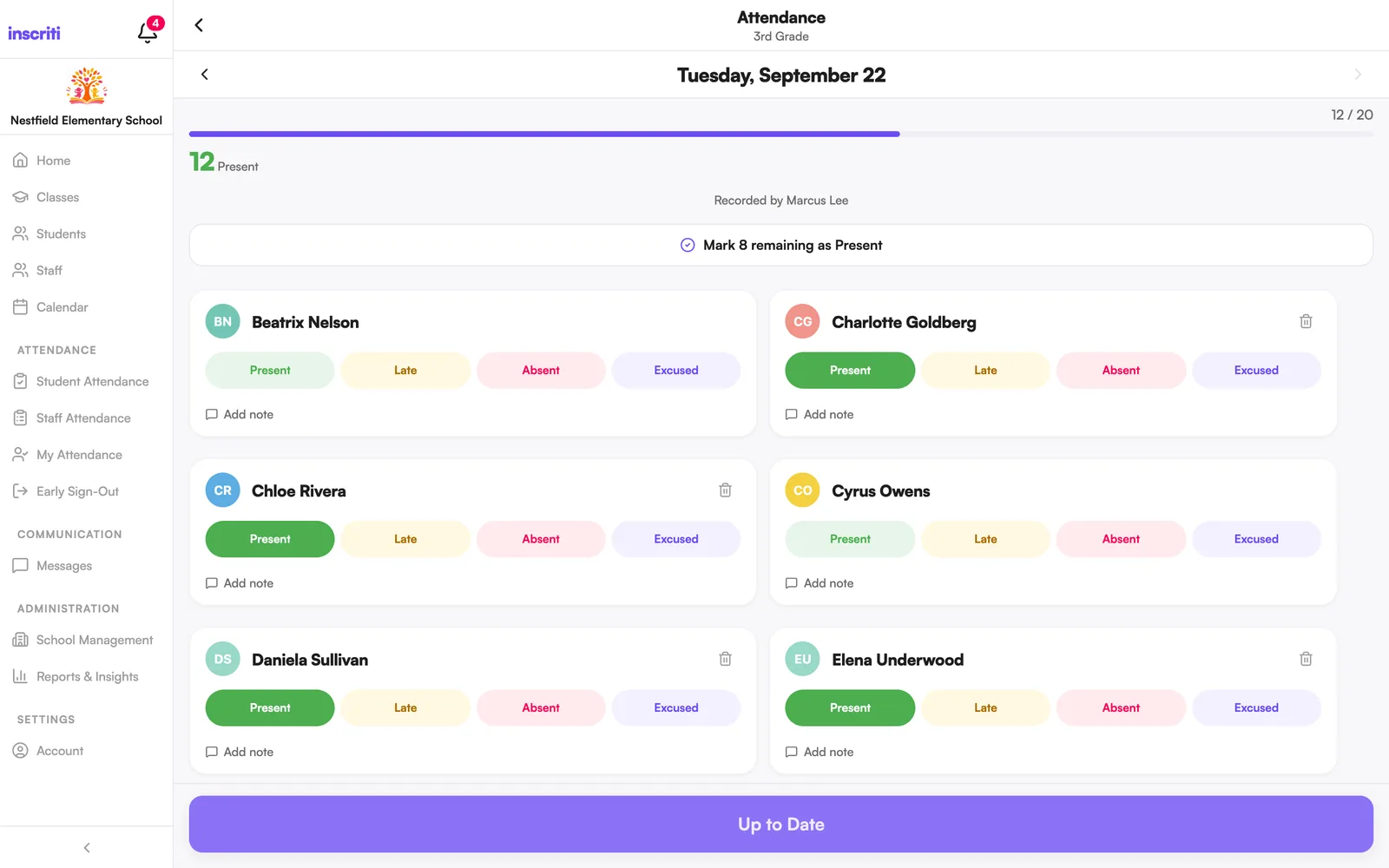
Status classes (Present / Late / Absent / Excused):
- Open the class → Attendance.
- Today is selected by default — tap the date, or use the arrows beside it, to work on another day.
- Tap Present, Late, Absent, or Excused for each student.
- Tap Mark N remaining as Present to fill in everyone left over.
- Tap Save Attendance.
Check-in/check-out classes:
- Open the class → Attendance.
- Tap Check In next to a student when they arrive, and Check Out when they leave.
- Tap Save Attendance to record it.
Once everything is saved, the button reads Up to Date and shows "Attendance saved successfully."
You can add a short note to any student before saving — tap Add note under their card. Staff assigned to the class, and admins with the Student attendance permission, can take attendance.
Check in with the class QR code
Check-in/check-out classes can also let parents and students check themselves in with a QR code, instead of waiting for a staff member to tap it for them.
- Open the class page.
- Tap Check In (only shown for check-in/check-out classes).
- Scan the code the school is displaying for that class.
- If you have more than one child in the class, pick who's checking in.
- Tap to check in — tap the same button again later to check out.
Staff: tap the QR icon at the top of the class's Attendance screen to display the code (QR Check-In) for families to scan.
Fix or delete an attendance record
Attendance for a day stays editable until you delete it.
- Open the class → Attendance.
- Pick the date with the mistake.
- Status classes: tap the correct status for that student.
- Check-in/check-out classes: tap the time next to a student (for example "In 8:05 AM") to correct it, or tap Undo to remove the last check-in or check-out.
- Tap Save Attendance.
To remove a student's record for the day entirely, tap the trash icon on their card (only shown once a record is saved) and confirm Delete Record.
View a student's attendance history
- Open the student's profile.
- Tap the Attendance tab.
- Use the date strip to move between months.
- Tap a status chip (Present, Late, Absent, Excused) to filter the list to just that outcome.
Summary tiles at the top show the totals for that month. A day the student left early shows a note with a View option for the signature.
See who's absent right now
Inside a class: open the class → Attendance — the day's list shows every student's status at a glance.
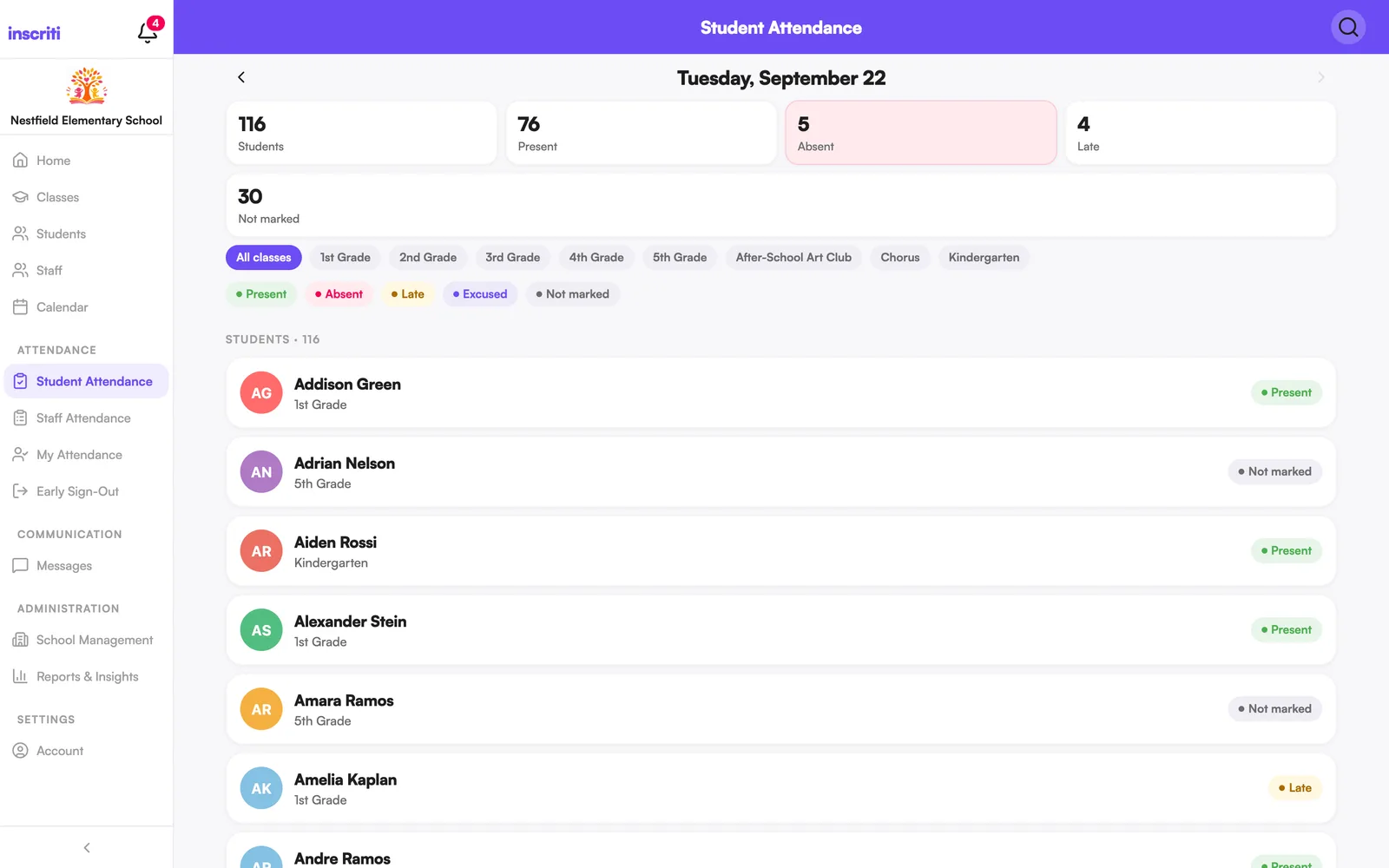
For the whole school: open Student Attendance from the menu. It shows one day at a time across every class you can see, with Present/Absent/Late/Excused counts, filters by class or outcome, and search. Tap a student to open their attendance history.
Available to teachers (their own classes) and admins with the Student attendance permission.
About Staff Attendance
Staff Attendance lets teachers and admins sign themselves in and out — by scanning a QR code or at a front-desk kiosk — and gives admins a daily view of who's expected, signed in, late, or missing a sign-out.
It's an optional feature. Admins turn it on in School Management → Features, then set it up under School Management → Attendance (QR codes, the kiosk, location checks, and grace periods).
Once it's on, every staff member sees My Attendance in the menu. Admins with the Staff attendance permission also see Staff Attendance, the dashboard for the whole school.
Sign in and out with the QR code (staff)
- Open My Attendance from the menu.
- Tap Scan QR Code (or Scan to Sign Out if you're already signed in).
- Point your camera at the school's staff attendance code.
Signing in outside your normal schedule? You'll be asked why — pick a reason (Meeting, Preparation, Substitute Coverage, Event, Training, Administrative Work, or Other) and continue. That sign-in is recorded as additional attendance for an admin to review.
Only shown when your school allows QR sign-in. If it doesn't, use the front-desk kiosk instead.
Sign in and out at the kiosk (staff)
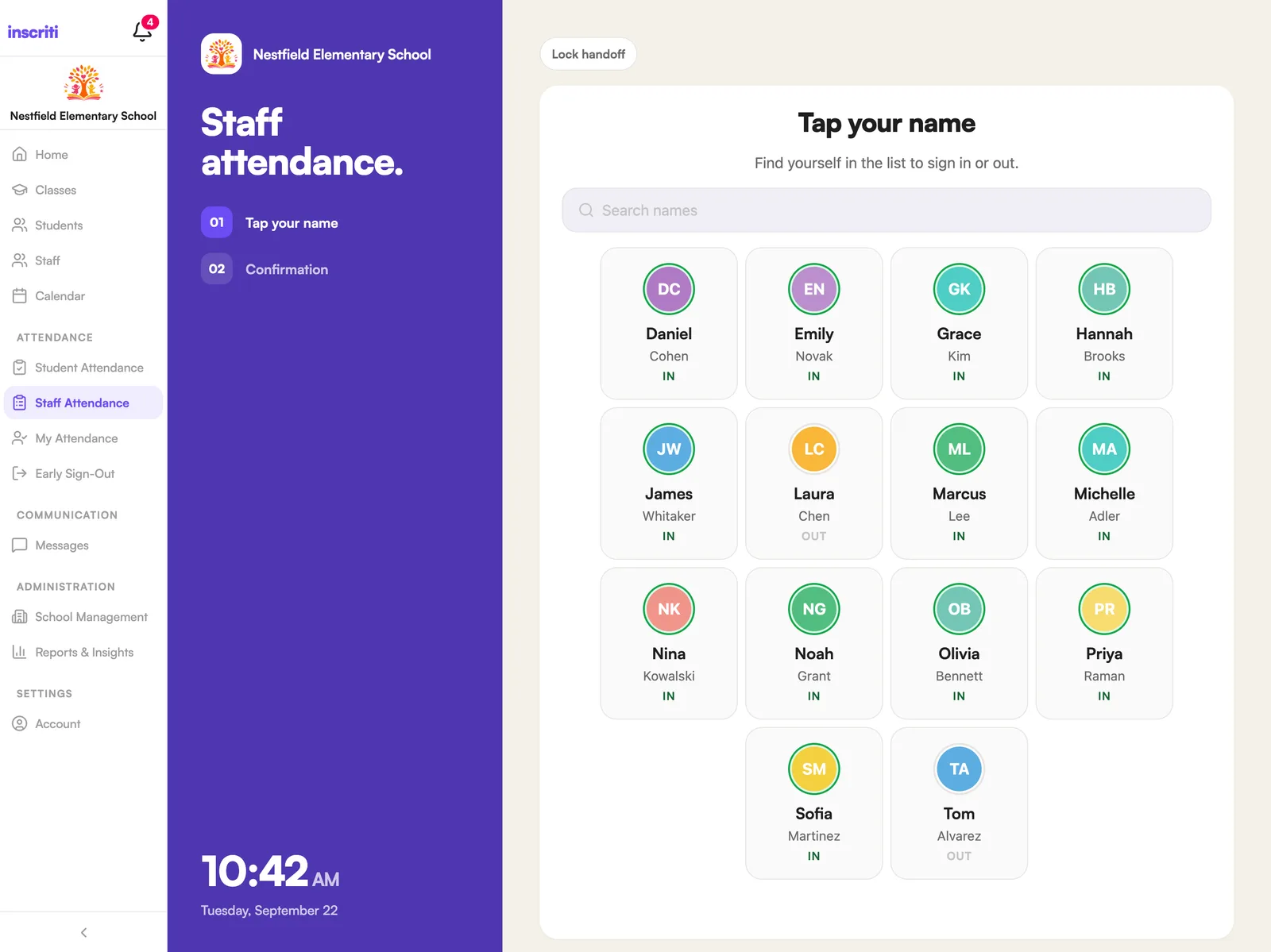
Some schools use a front-desk iPad instead of, or alongside, QR sign-in. How you identify yourself depends on the school's setting:
- Tap your name: find yourself in the list and confirm Sign in or Sign out.
- Enter your PIN: type your 6-digit attendance PIN. Set one first — see Set your Attendance PIN.
The kiosk shows a confirmation with the time and your expected hours, then resets for the next person.
An admin can lock the iPad to this screen ("Lock handoff") behind a 4-digit PIN when handing it off. Only a matching PIN or an admin's account password unlocks it.
Set your Attendance PIN
- Open Settings.
- Tap Attendance PIN.
- Choose a 6-digit PIN and enter it again to confirm.
This is the PIN you type at a kiosk set to PIN sign-in. Avoid a PIN that's all the same digit or a simple sequence — it will be rejected.
Admins can reset your PIN but never see it. Only shown once your school has turned on Staff Attendance.
My Attendance: today, recent days, and requests
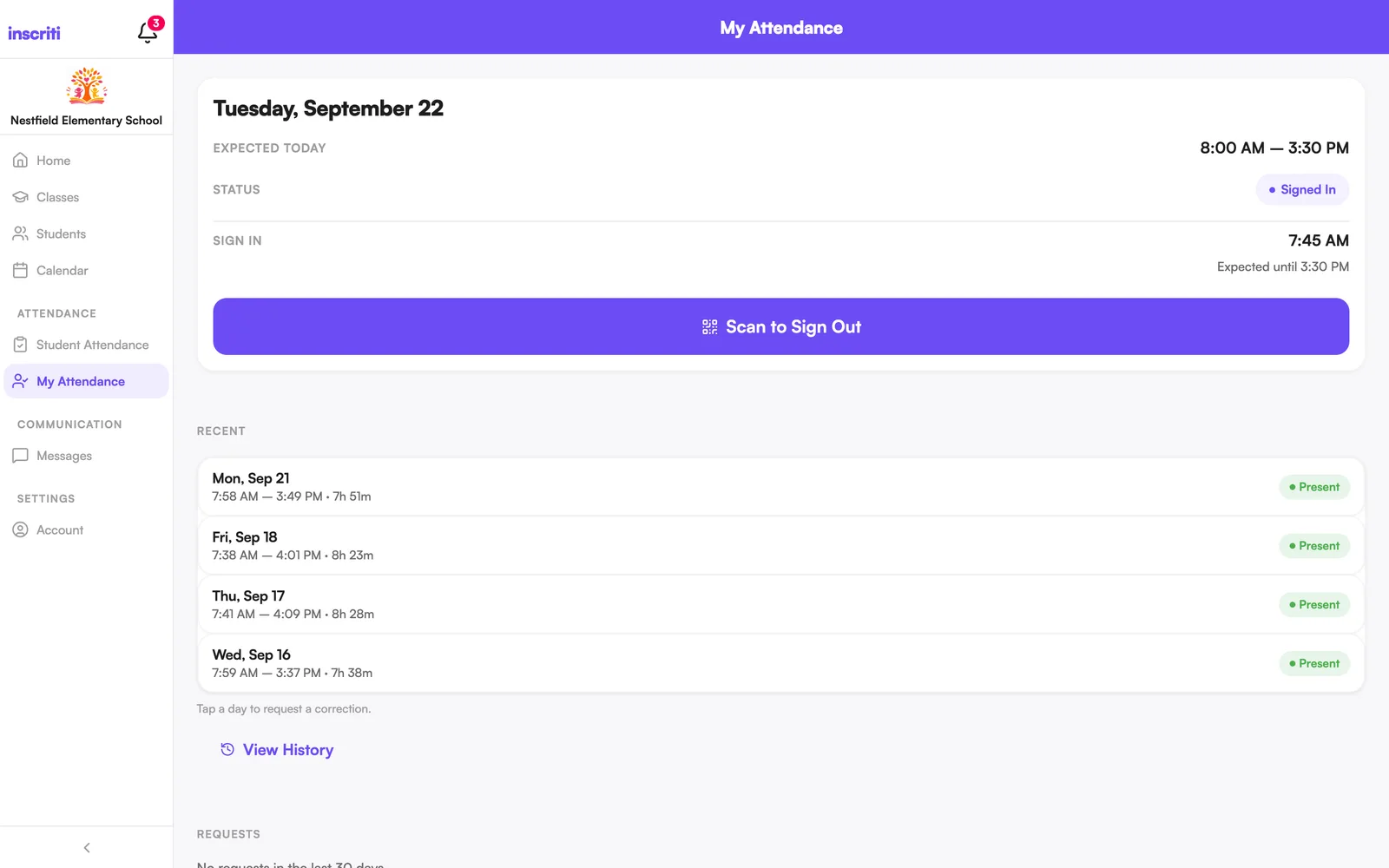
Open My Attendance from the menu to see:
- Today — your expected hours, current status, sign-in/out times, and the Scan QR Code button.
- Recent — the last week, one row per day. Tap a day to request a correction for it.
- Requests — your corrections and additional attendance, with their status (Pending, Approved, Denied).
Tap View History under Recent for your full last 90 days.
Request a correction or add missed attendance
Both are reviewed by an admin, who notifies you when it's approved or denied.
Request a correction (you signed in or out, but it's wrong or missing):
- Open My Attendance → Request a Correction (or tap the day itself under Recent).
- Choose what happened: missing sign-in, missing sign-out, wrong time, QR problem, kiosk problem, or other.
- Enter the correct time(s) and a short reason.
- Tap Submit.
Add additional attendance (you worked outside your normal schedule — a meeting or event):
- Open My Attendance → Add Additional Attendance.
- Set the date, start and end time, and a reason.
- Tap Submit.
The Staff Attendance dashboard (admins)
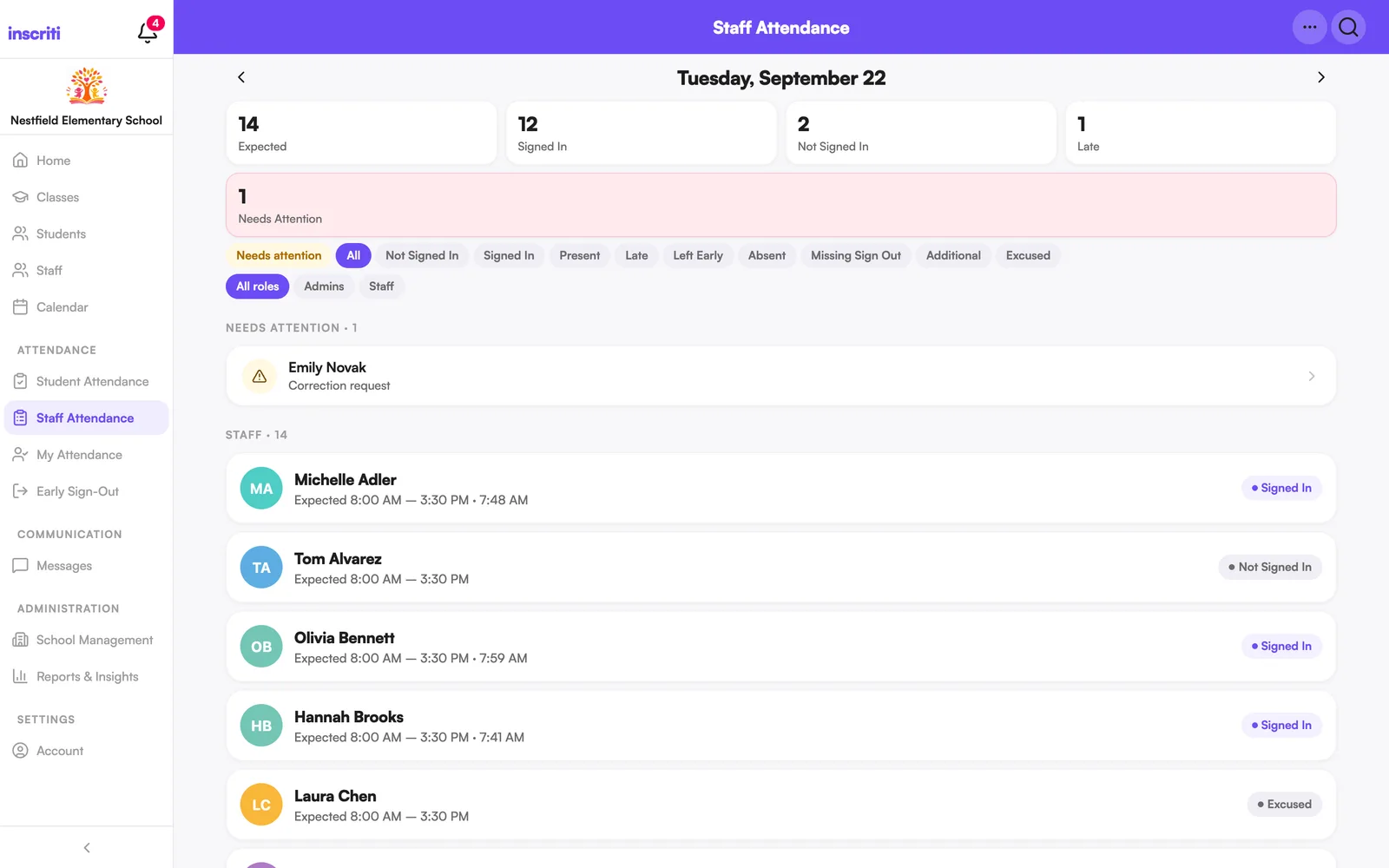
Open Staff Attendance from the menu for a school-wide view of one day at a time: Expected, Signed In, Not Signed In, Late, and Needs Attention counts, plus a Needs Attention list for anything that wants a look — a missing sign-out, a flagged location, a pending request.
- Use the date strip to move between days (you can also look ahead).
- Filter by status, role, or search for a name.
- Tap a staff member to open their day.
From a member's day you can edit or add a sign-in/sign-out, approve or deny a correction or additional-attendance request, delete a record, and see the full change history.
Requires the Staff attendance permission — viewing needs the "view" level, editing needs "manage."
Set a staff member's schedule (admins)
- Open the staff member's profile.
- Under Attendance Schedule, tap Edit Schedule (or Set Schedule if they don't have one yet).
- Add hours for each day of the week they're expected.
- Choose when this schedule should begin — earlier days keep the previous schedule, so past attendance doesn't change.
- Tap Save Schedule.
A day with no scheduled hours isn't held against them — signing in that day is simply recorded as additional attendance.
Close a day or clear someone's hours (admins)
Close the whole school (a holiday or snow day — nobody is expected, nobody is marked absent):
- Open Staff Attendance.
- Tap Tools → Close school for staff.
- Set the date range and an optional reason, then save.
A banner shows the closure with a Reopen option to undo it.
Clear one person's day (no school for just them): open their day from the dashboard and use Delete this day. It's restorable from the same place afterward.
Show or print the staff QR code (admins)
- Open Staff Attendance.
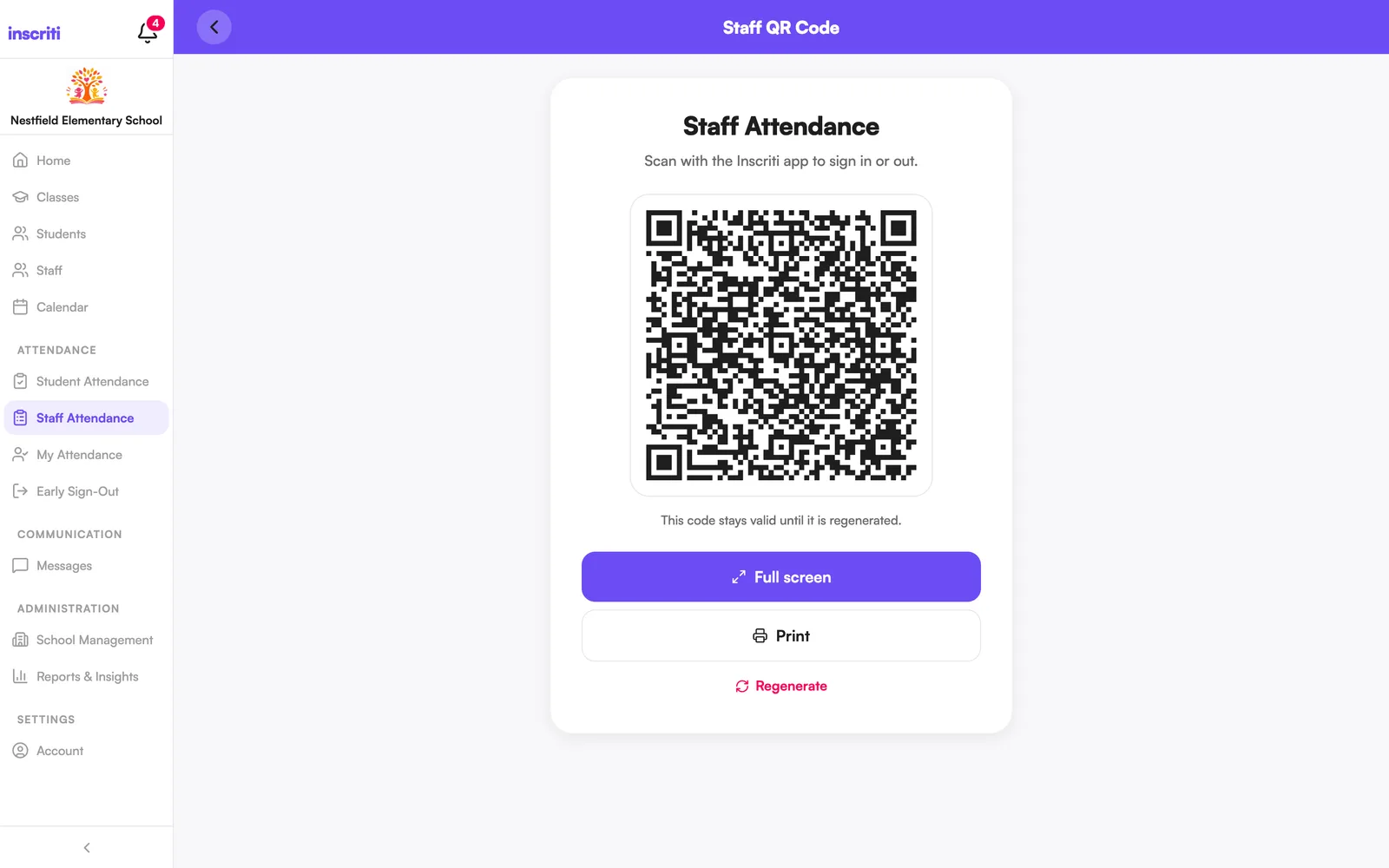
- Tap Tools → Staff QR.
- Tap Full screen to display it on an iPad, TV, or monitor at the entrance.
A static code stays valid until you tap Regenerate code (this invalidates every printed copy) — tap Print to print one. A rotating code changes every minute and is meant to stay on a screen, not be printed.
Whether the code is static or rotating is set in School Management → Attendance.
Was this page helpful?
Still stuck?
Email us your school name, your role and what you were trying to do. A person answers, usually within one business day.
© 2026 Jordan Feldstein LLC · Inscriti Help Center · Attendance · inscriti.com/help