

Calendar
Monthly calendar and school events.
On this page
About the Calendar
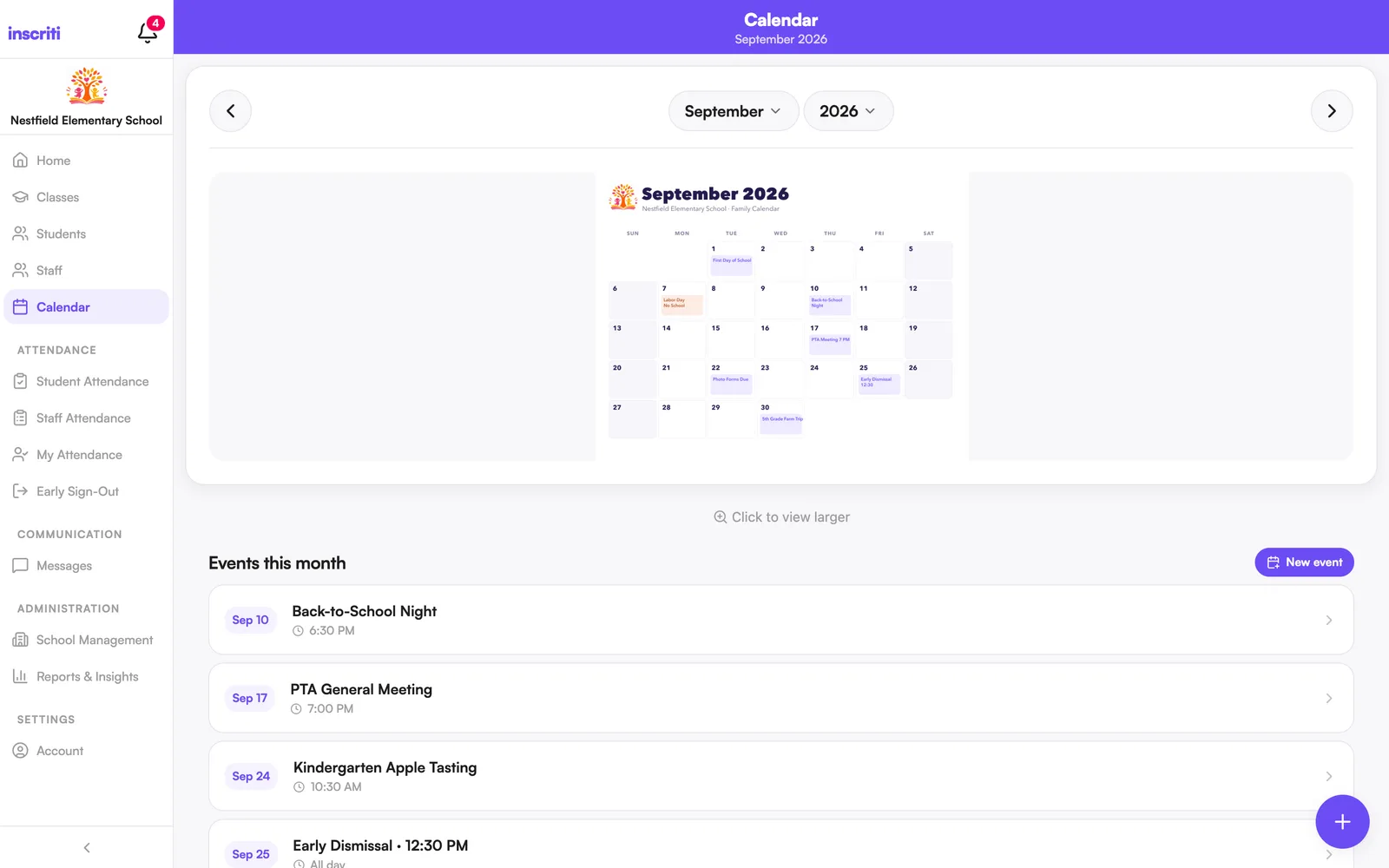
The Calendar tab shows your school's monthly calendar image, plus a list of school events for that month. It only appears if your school has enabled the feature.
View the calendar
Tap the Calendar tab. The monthly calendar image is at the top; scroll down to see Events this month.
Navigate between months
Tap the left or right arrow at the top of the calendar to move to the previous or next month. You can also tap the month or year to jump straight to one.
Upload a calendar image (staff)
- Tap the Calendar tab.
- Move to the month you want.
- Tap the + button.
- Pick the image (a screenshot or scan of your monthly calendar works well).
Staff with the Calendar & events permission can upload a calendar image.
Replace a calendar image (staff)
- Move to the month.
- Tap the + button again.
- Choose the new image. It replaces the old one for that month.
View this month's events
Below the calendar image, the Events this month list shows every event scheduled for the month you're viewing. Tap an event to see its date, time, location, and description.
Create a school event (staff)
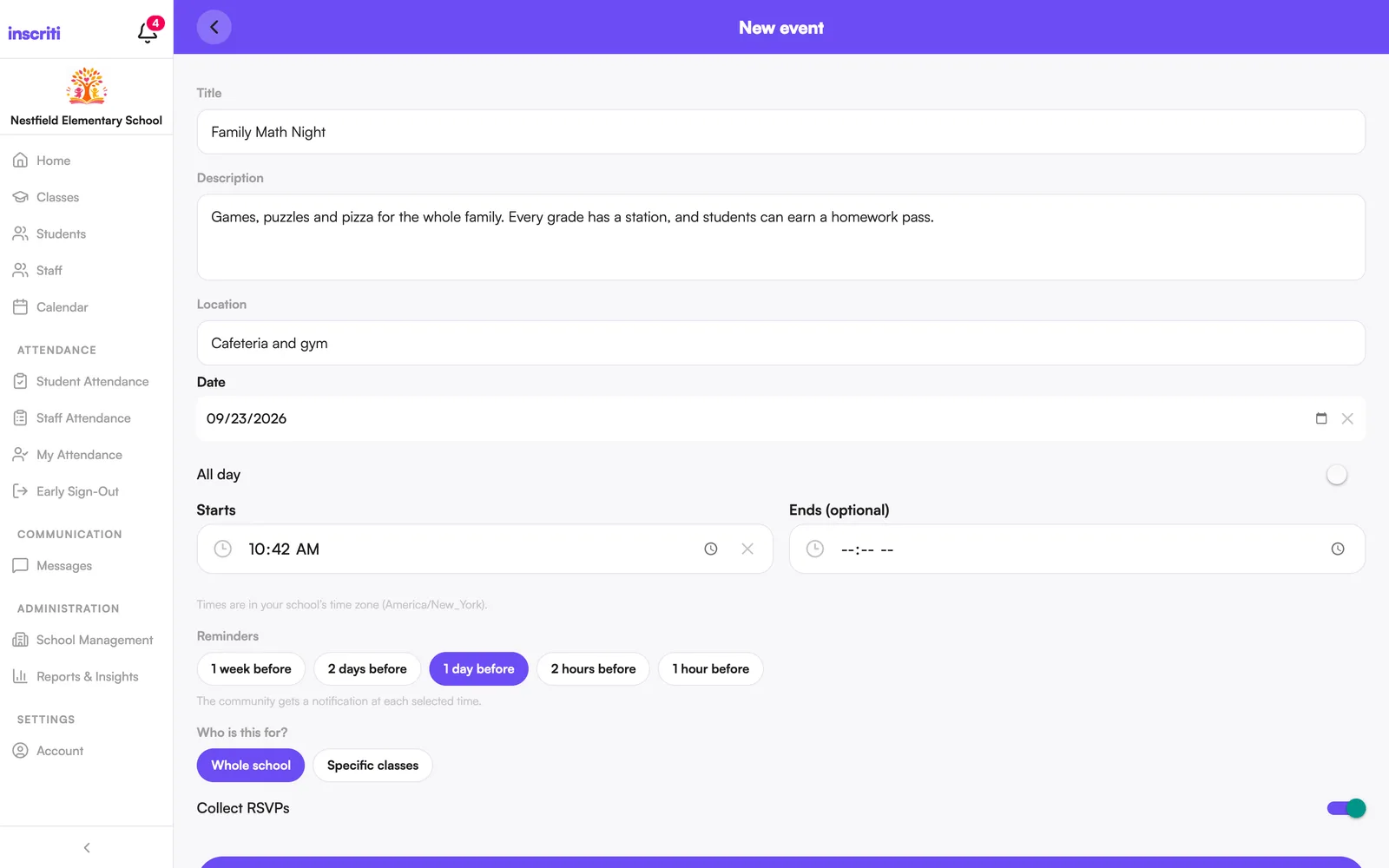
- Open the Calendar tab and tap New event.
- Add a Title (required). Description and location are optional.
- Pick a Date. Turn on All day, or set a start and end time.
- Choose reminders — how long before the event families get notified (up to 5).
- Choose who it's for: Whole school or Specific classes.
- Leave Collect RSVPs on if you want families to respond.
- Tap Create event.
Staff can create events for their own classes. Staff with the Calendar & events permission can also create whole-school events. The audience can't be changed after the event is created.
New events are announced right away by push and in-app notification. Reminders you choose are also push and in-app only — they're never emailed, even in the daily summary.
RSVP to an event
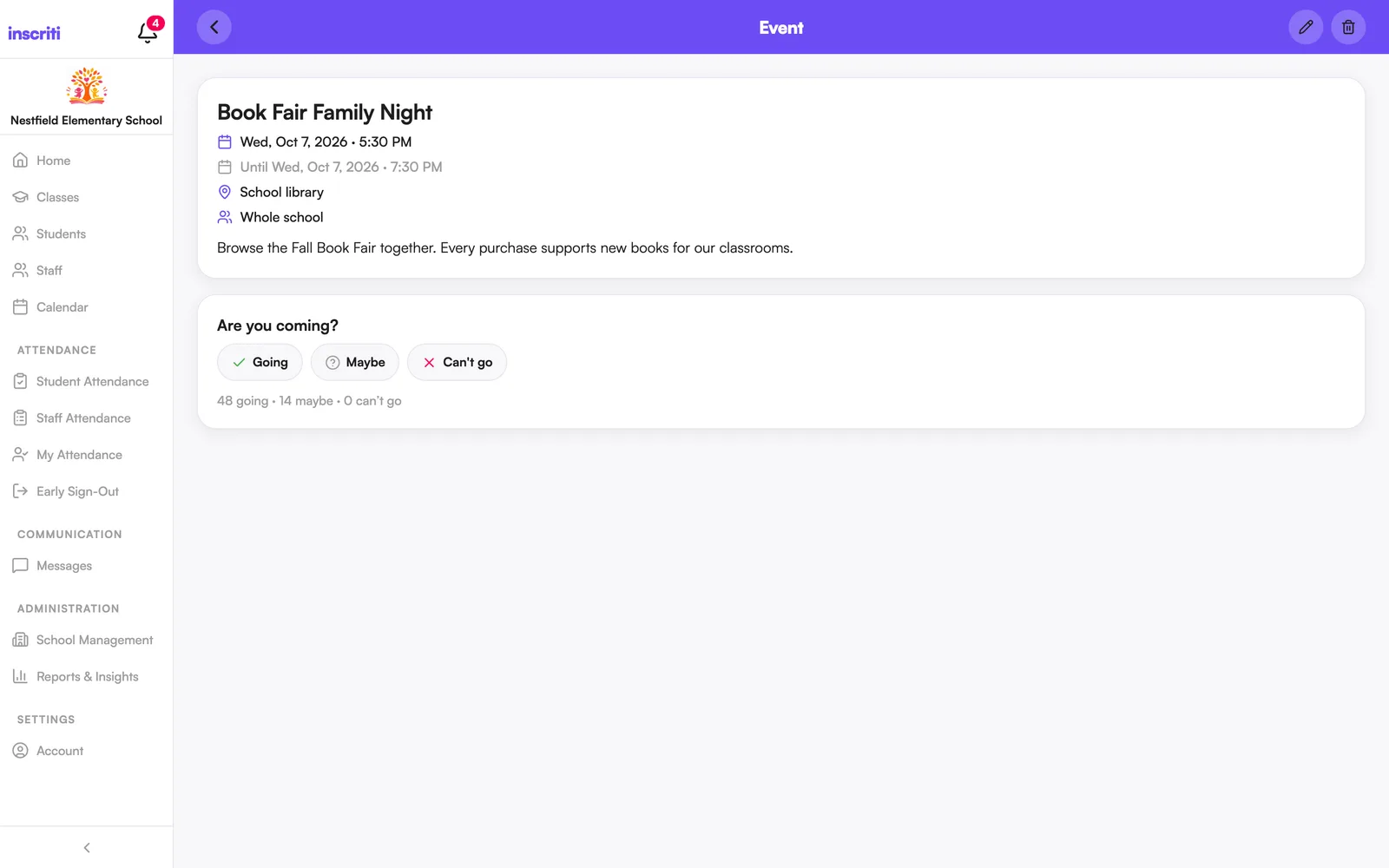
- Open the event from the Events this month list.
- Tap Going, Maybe, or Can't go.
Staff can see how many people responded each way. You can change your response any time.
Edit or delete an event
- Open the event.
- Tap the pencil icon to edit it, or the trash icon to delete it.
- If deleting, confirm. The event and everyone's RSVPs are removed for everyone.
Available to whoever created the event, and staff with the Calendar & events permission.
Was this page helpful?
Still stuck?
Email us your school name, your role and what you were trying to do. A person answers, usually within one business day.
© 2026 Jordan Feldstein LLC · Inscriti Help Center · Calendar · inscriti.com/help