

Messages
Conversations, announcements, and alerts.
On this page
- Open your messages
- Start a new conversation
- Message your child's teacher (parents)
- Message a parent (staff)
- Attach a photo or document to a message
- Search for a conversation
- Filter your messages
- View conversation info
- Mute a conversation
- Archive a conversation
- Know if a message has been read
- React to a message
- Reply to a specific message
- Send an announcement
- Send an urgent alert
- Acknowledge an urgent alert
Open your messages
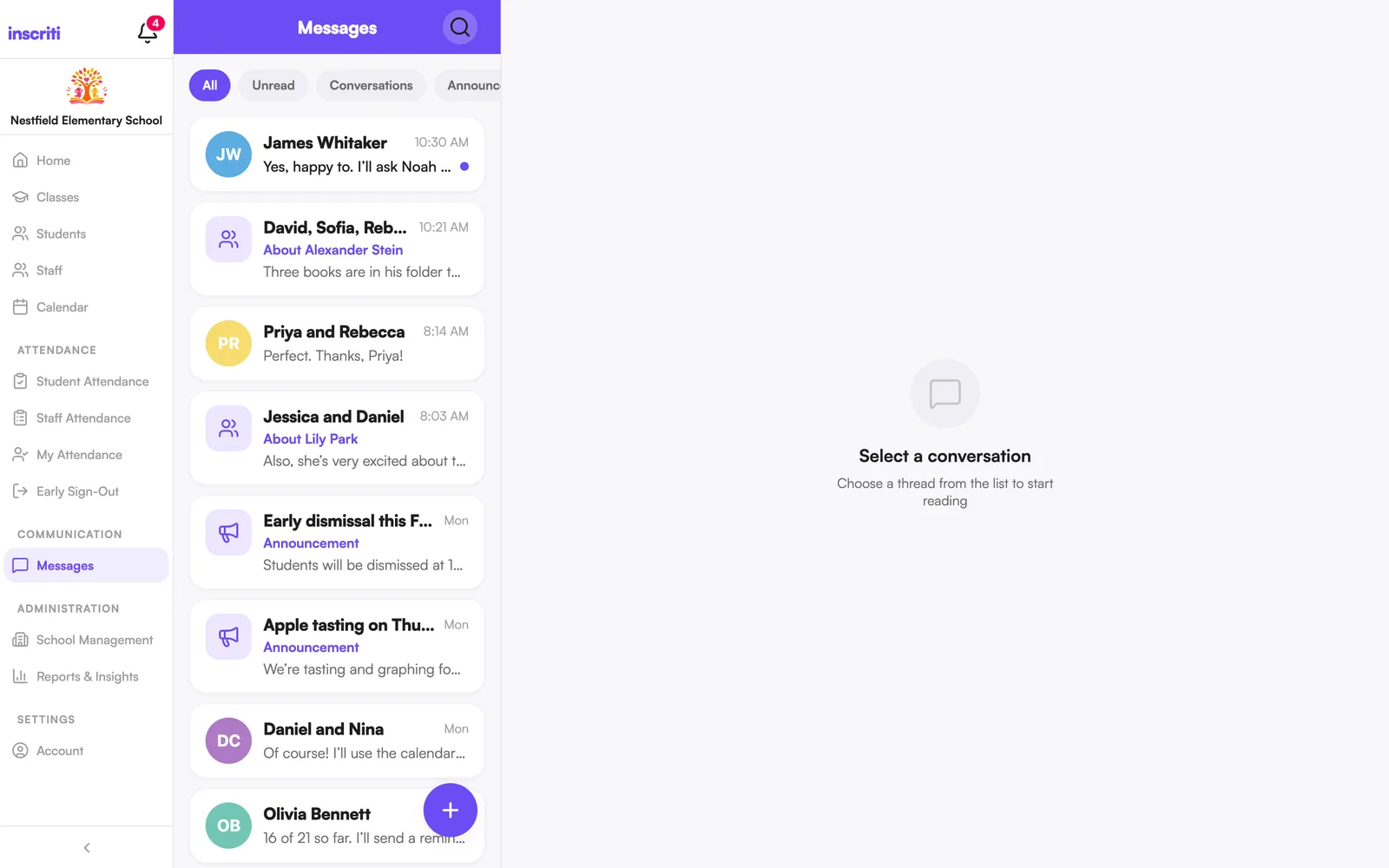
Tap the Messages tab. Conversations, announcements, and alerts are sorted with the most recent activity at the top.
Start a new conversation
- Tap the Messages tab.
- Tap the + button.
- Search or browse for the person (or family) you want to message, and tap to select them.
- Tap Next.
- Type your message and tap send.
Tapping a student's row messages their whole family — guardians and the student's own account, if they have one. Tap the small arrow next to a family row to message just one person instead.
Message your child's teacher (parents)
You can message any of your children's current teachers, plus your school's admins.
- Tap Messages → +.
- Search the teacher's name and tap to select them.
- Tap Next, then type your message and send.
You can also open your child's profile and tap the message icon next to a teacher's name — see Message your child's teacher from their profile.
When a school year rolls over, last year's teacher drops off this list, but any conversation you already had with them stays readable.
Message a parent (staff)
Teachers and other staff can message any staff member, plus the families of students in their current classes.
- Tap Messages → +.
- Search the family's or parent's name and tap to select them.
- Tap Next, then type your message and send.
Attach a photo or document to a message
- Open the conversation.
- Tap the + icon next to the message box.
- Choose Photo or Document (PDF).
- Add a message if you want.
- Tap send.
You can add up to 5 attachments per message.
Search for a conversation
- Tap the Messages tab.
- Tap the search icon at the top.
- Type a person's name or a word from the conversation.
Filter your messages
Under the Messages search bar, tap a filter: All, Unread, Conversations, Announcements, Alerts, or Archived.
View conversation info
- Open the conversation.
- Tap the name at the top, or the info (i) icon.
You'll see who's in it, the mute setting, and options to archive it or report a problem to the school.
Mute a conversation
You'll still receive the messages but you won't get notifications.
- Open the conversation.
- Tap the info icon at the top.
- Turn on Mute.
Urgent alerts can't be muted — they always come through.
Archive a conversation
There's no delete — archiving hides a conversation from your own inbox. Everyone else keeps theirs, and you can bring it back any time.
- Open the conversation.
- Tap the info icon.
- Tap Archive, then confirm.
To bring it back, open the Archived filter in Messages, open the conversation, and tap Unarchive.
Know if a message has been read
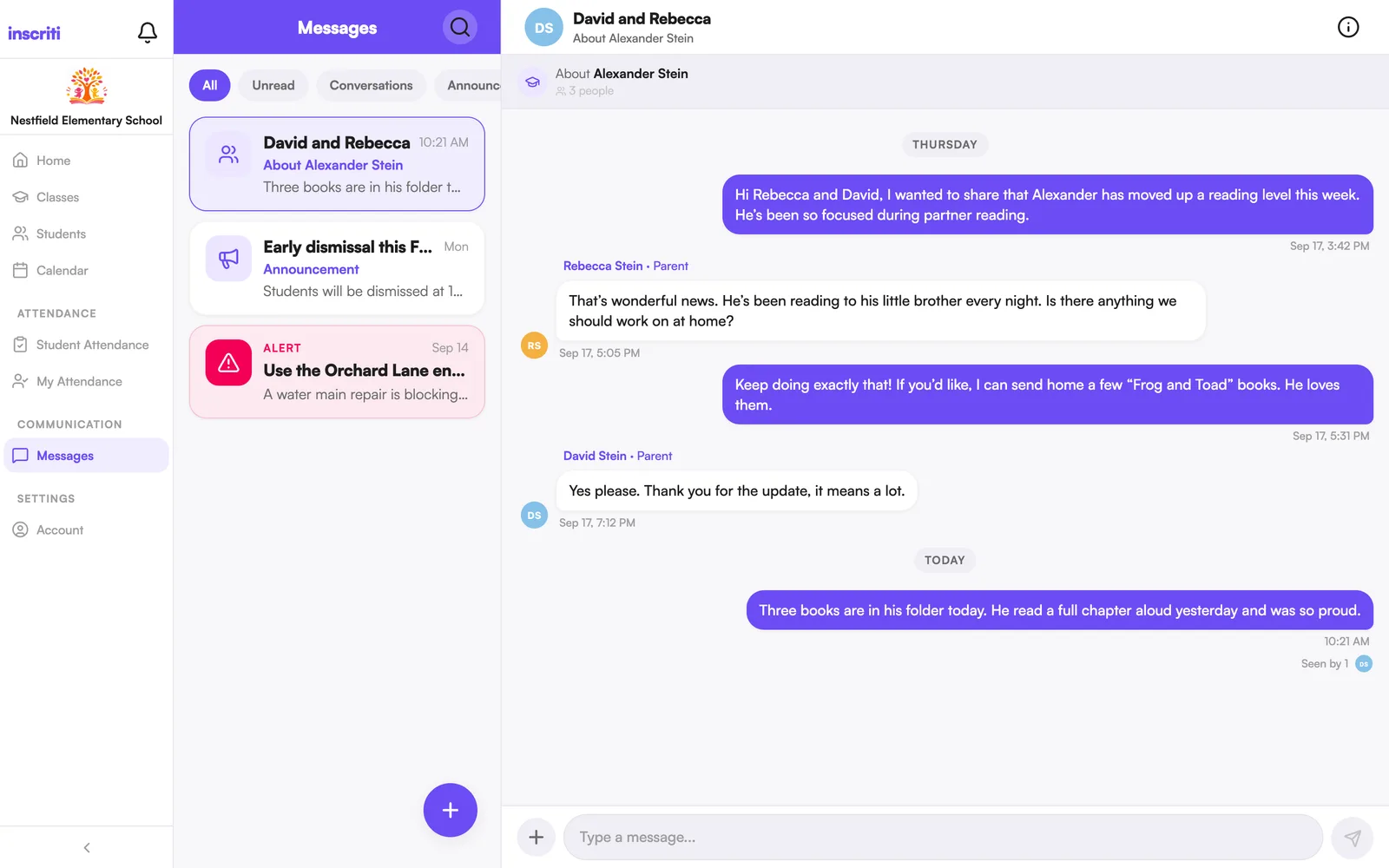
Under the last message you sent in a conversation, Seen appears once someone else has read it — with their avatar in a group thread. In the conversation list, a message you haven't read yet shows a colored dot (or a number, if there's more than one).
React to a message
- Open the conversation.
- Press and hold a message.
- Tap an emoji.
Tap your own reaction again to remove it.
Reply to a specific message
- Open the conversation.
- Press and hold the message you're replying to.
- Tap Reply.
- Type your message and send.
Your reply shows a quote of the message it's answering.
Send an announcement
Announcements are one-way — recipients can't reply in the thread (they can start a separate direct message instead).
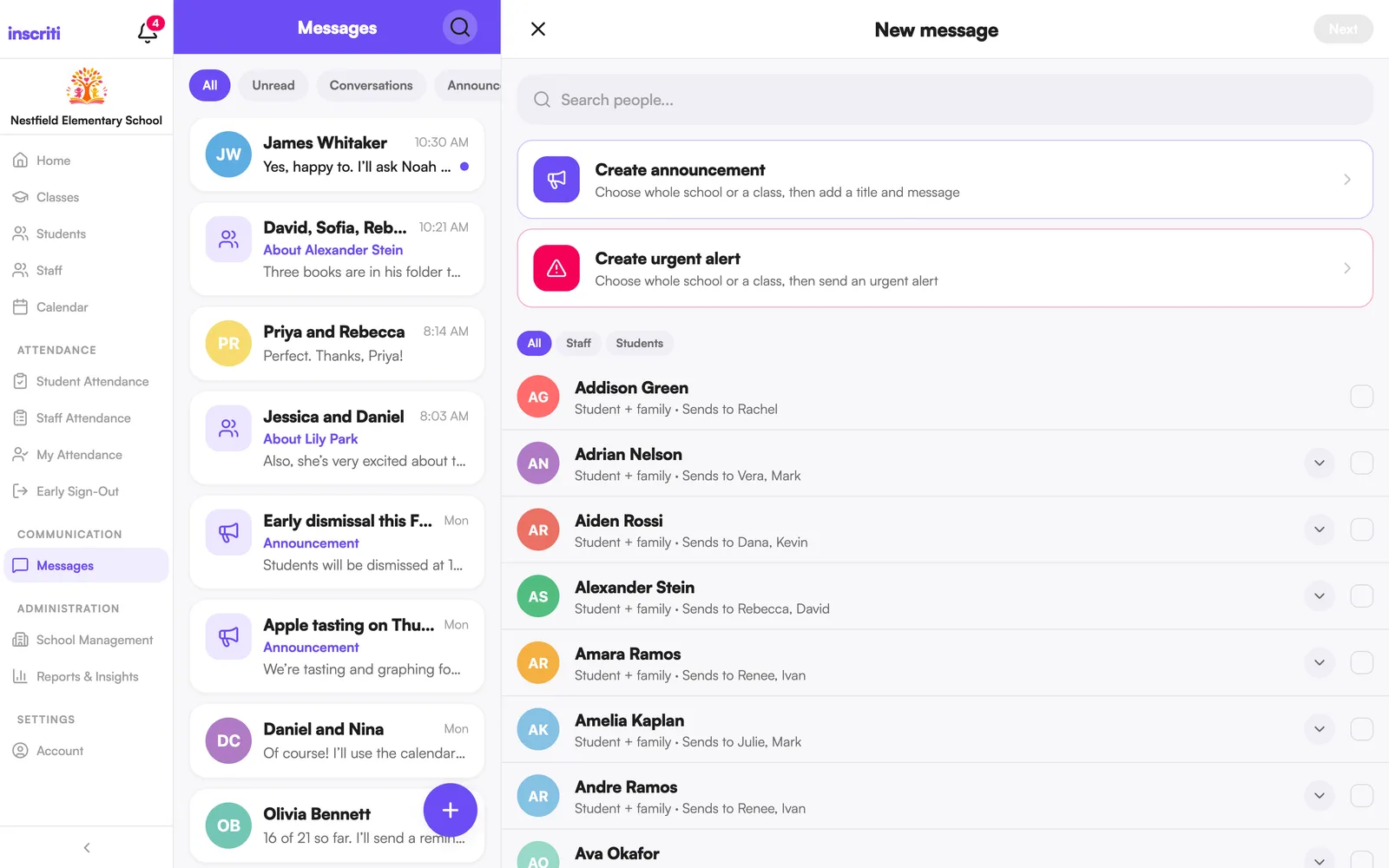
- Tap Messages → +.
- Tap Create announcement.
- Choose Whole school or a class.
- Add a title and a message.
- Tap send.
Staff can send an announcement to a class. Sending to the whole school needs admin access or the Send Announcements permission.
Send an urgent alert
Admins only. Urgent alerts are for time-sensitive, school-wide or class-wide notices — they're one-way, can't be muted, and ask recipients to acknowledge them.
- Tap Messages → +.
- Tap Create urgent alert.
- Choose Whole school or a class.
- Add a title and a message.
- Tap send.
Acknowledge an urgent alert
An urgent alert may ask you to confirm you've seen it. Open the alert and tap Acknowledge. Whoever sent it can see how many people have read and acknowledged it.
Was this page helpful?
Still stuck?
Email us your school name, your role and what you were trying to do. A person answers, usually within one business day.
© 2026 Jordan Feldstein LLC · Inscriti Help Center · Messages · inscriti.com/help